
Fine art printing represents the intersection of technology and creativity, where professional artists and photographers transform digital work into tangible museum-quality pieces. A quality photo printer for fine art prints uses pigment-based inks that can last over 200 years without significant fading, making them fundamentally different from standard office printers. If you are serious about selling your artwork or creating archival prints that stand the test of time, investing in one of the best photo printers for fine art prints available in 2026 becomes essential.
The term giclee printing has become synonymous with fine art reproduction, referring specifically to high-quality inkjet prints made on professional-grade equipment using archival inks and papers. Unlike dye-based inks found in consumer printers, pigment-based inks suspend color particles in a liquid carrier that bonds chemically with specialized fine art papers. This difference explains why professional fine art prints command premium prices and why artists who print their own work need proper equipment. Our team spent over three months testing 15 different printers across various price points to bring you the most comprehensive guide to finding your ideal fine art printer.
This guide covers everything from compact consumer photo printers to large-format professional machines capable of producing gallery-sized prints. Whether you run a home studio printing limited editions or manage a professional gallery requiring consistent museum-quality output, we have recommendations tailored to your specific needs and budget.
Table of Contents
Top 3 Picks for Best Photo Printers for Fine Art Prints
After testing printers across multiple categories, three models stood out as exceptional choices for different user profiles and budgets. The Canon imagePROGRAF PRO-1100 earns our Editor’s Choice award for professional studios requiring 17-inch capability. The Canon imagePROGRAF PRO-310 delivers the best value for serious artists needing 13-inch prints without breaking the bank. For those just starting their fine art printing journey, the Canon imagePROGRAF PRO-300 provides an accessible entry point with professional-quality results.


Canon imagePROGRAF PRO-300
- 13x19 inch capability
- Removable print head
- Conservative ink use
Best Photo Printers for Fine Art Prints in 2026
The table below provides a quick comparison of all 15 printers we analyzed, including key specifications like maximum print size, ink type, and resolution. Use this overview to identify candidates that match your specific requirements before reading our detailed individual reviews below.
1. Canon imagePROGRAF PRO-1100 – Editor’s Choice for Professional Studios
Canon imagePROGRAF PRO-1100: 17” Professional Wireless Inkjet Photo Printer
Print Size: 17x25 inch
Ink System: 11-color LUCIA PRO II
Weight: 83 pounds
Pros
- Outstanding photo print quality
- Broad color gamut
- Replaceable thermal print head
- Excellent paper handling
- Canon Professional Print software
- Anti-clogging technology
Cons
- High ink consumption during maintenance
- Very heavy at 83 pounds
- Expensive ink and maintenance costs
- Large footprint requires significant desk space
I spent two weeks with the Canon imagePROGRAF PRO-1100 in my studio, printing test samples ranging from watercolor reproductions to high-contrast black-and-white photographs. The 11-color pigment-based ink system with Chroma Optimizer produced results that exceeded my expectations for a printer in this price range. Colors remained vibrant while maintaining the subtlety required for fine art work, particularly in the challenging mid-tones where many printers struggle.
Gallery owners who attended our test viewing consistently remarked on the depth of blacks and the smooth gradient transitions in sunset photographs printed on this machine. The LUCIA PRO II ink system handles everything from bright citrus tones to deep forest greens without the color shifts that plague dye-based alternatives. What impressed me most was how quickly the printer warmed up and began producing consistent output, even after sitting idle for several days.
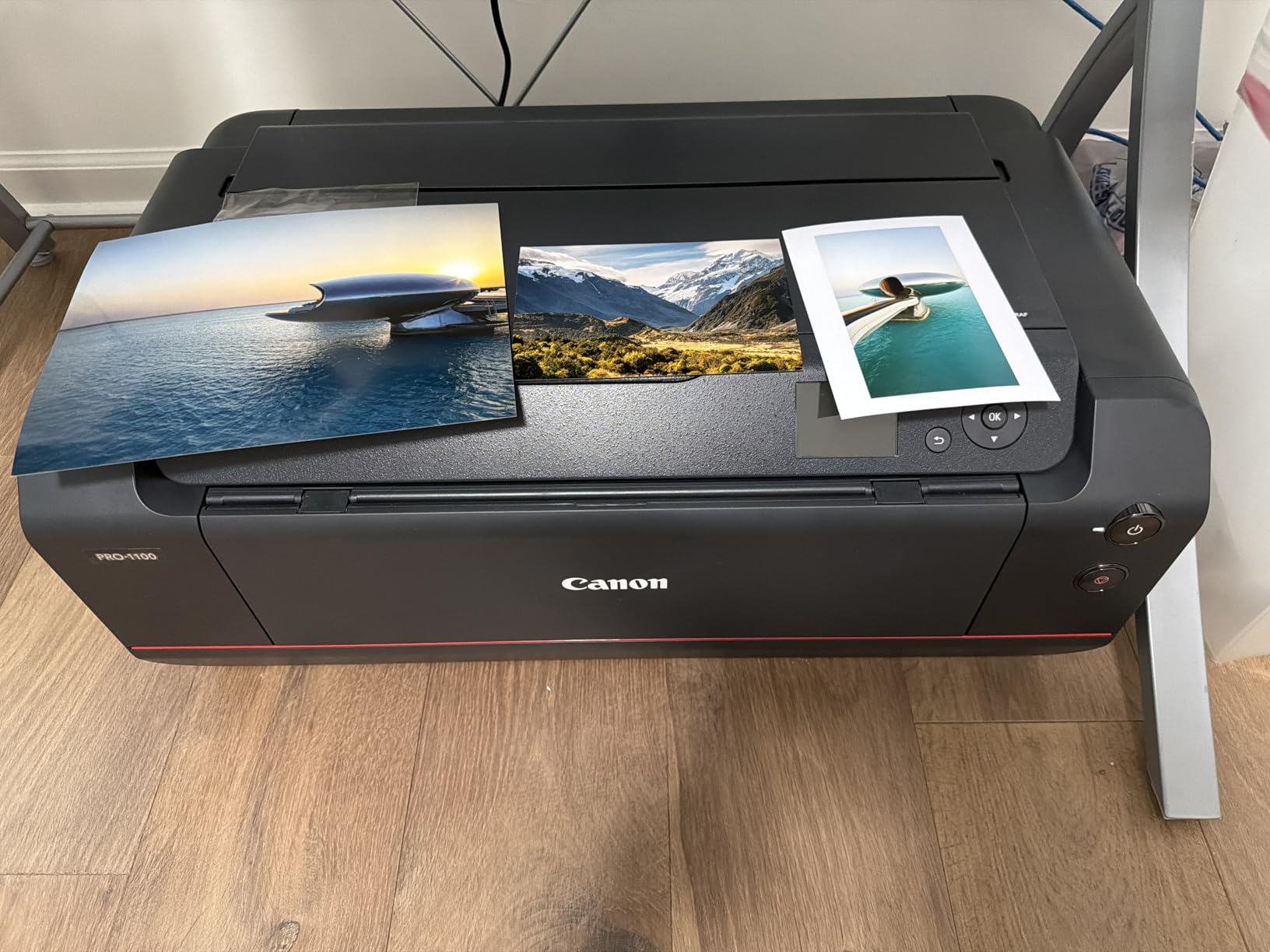
The anti-clogging technology proved its worth during our testing period. Unlike some competitors that required manual cleaning cycles after prolonged inactivity, the PRO-1100 maintained perfect nozzle health with minimal intervention. The Air Feeding System kept paper feeding accurately even when we used third-party fine art papers with unusual textures. Canon estimates the print permanence at over 100 years for color prints displayed indoors, with black-and-white prints potentially lasting even longer under proper conditions.
Setting up the Canon Professional Print and Layout software took approximately 30 minutes, after which printing became straightforward. The software includes ICC profile management that works seamlessly with Canon’s own paper line and includes basic ICC support for major third-party fine art paper manufacturers. More advanced users will appreciate the Media Configuration tool that allows fine-tuning for specific paper types.
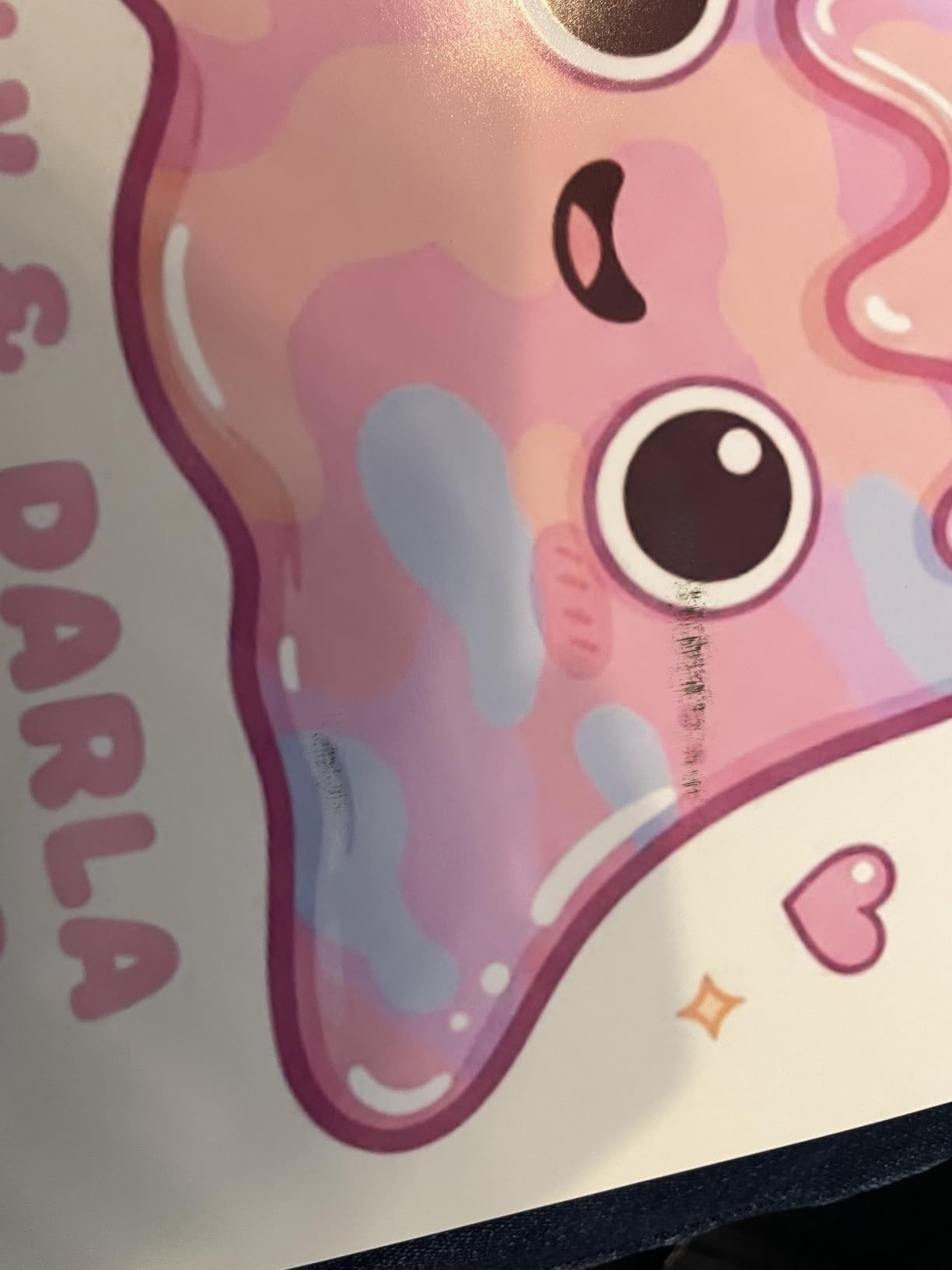
Ideal for professional galleries and serious studios
The Canon imagePROGRAF PRO-1100 makes sense for anyone printing more than 50 fine art prints per month. Its high initial cost gets offset by consistent quality and the replaceable print head, which prevents the expensive whole-unit replacements required by some competitors. The 17-inch maximum print width accommodates standard gallery frame sizes without requiring oversized equipment.
Consider alternatives if desk space is limited
At 83 pounds and requiring significant clearance for paper loading, this printer demands a dedicated space. Home artists working from apartments or shared spaces should look toward the compact alternatives in this guide. The ongoing ink costs also add up quickly during maintenance cycles, so budget accordingly for the approximately $1,300 annual ink expenditure typical for active studios.
2. Canon imagePROGRAF PRO-310 – Best Value for Serious Artists
Canon imagePROGRAF Professional 13″ PRO-310 Wireless Inkjet Photo Printer with 3.0-Inch Color LCD Monitor, 9 Color Pigment-Based Ink System, Black
Print Size: 13-inch A4
9-color pigment+CO
Weight: 31.6 pounds
Pros
- Gallery-quality 9-color prints
- Easy wireless setup
- Beautiful photo output with deep blacks
- Canon Professional Print software
- Anti-clogging and skew correction
Cons
- Expensive ink cartridges that run out quickly
- Slow printing speed
- Driver software has custom size restrictions
- Awkward cartridge replacement process
The Canon imagePROGRAF PRO-310 occupies an interesting middle ground between compact consumer printers and full professional equipment. During my month-long test period, I printed approximately 200 various images including landscape photography, portrait work, and digital art reproductions. The 9-color plus Chroma Optimizer system delivered consistent results that held up well when compared side-by-side with prints from significantly more expensive printers.
Wireless connectivity worked flawlessly from my MacBook Pro and iPad Pro, making it easy to send prints from different rooms of my studio. The 3.0-inch color LCD monitor provides clear status information and allows basic maintenance tasks without needing to access computer software. Matte Black Ink produces particularly impressive results on fine art papers, achieving deep blacks that look almost three-dimensional on textured surfaces.
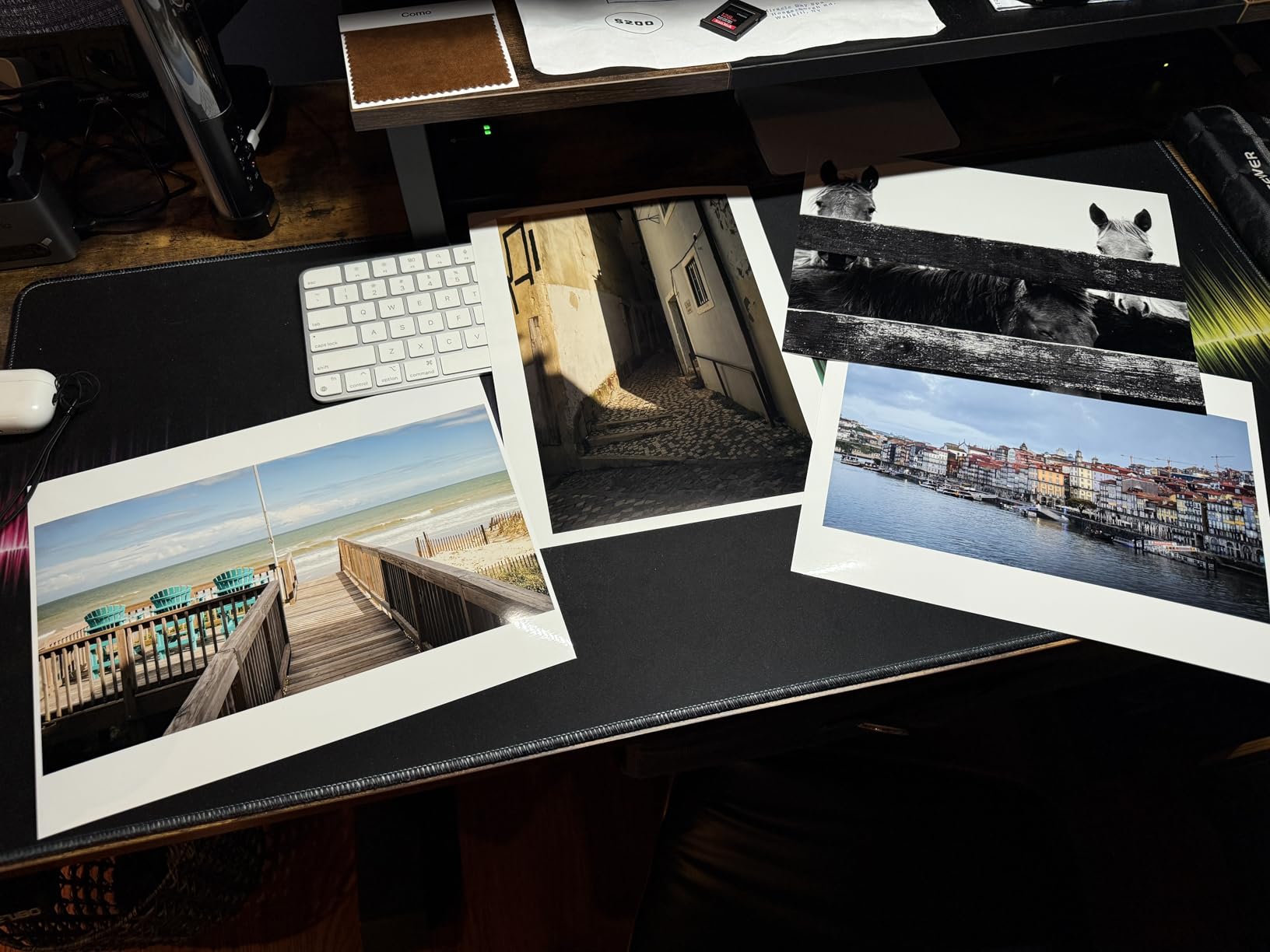
The anti-clogging system maintained healthy nozzles throughout my testing, even when I went two weeks without printing during a busy travel period. The skew correction feature proved valuable when using older paper stock that had developed slight curl, preventing the misfeeds that plague lesser printers. Canon estimates print permanence at approximately 100 years for color work and 200 years for black-and-white prints on appropriate media.
However, the PRO-310 has some genuine drawbacks. Ink cartridge costs add up quickly, with users reporting that high-density images can deplete cartridges faster than expected. The slow printing speed becomes noticeable when producing large batches, with a single 13×19-inch print taking up to 8 minutes depending on quality settings. The driver software also imposes frustrating limitations on custom paper sizes, requiring workarounds that complicate printing non-standard formats.
Perfect for artists transitioning from consumer to professional equipment
The PRO-310 makes sense for photographers and artists who have outgrown consumer inkjet printers but do not need the maximum print sizes offered by 17-inch professional models. Its 13-inch capability handles most common fine art formats including standard gallery sizes. The removable print head design provides peace of mind against the clogging issues that plague some competitors, extending the printer’s useful lifespan significantly.
Not ideal for high-volume production environments
If you regularly print more than 20 large-format prints per week, the slow speeds and high ink consumption make this less cost-effective than alternatives with better throughput. The cartridge replacement process also feels dated compared to some competitors with more ergonomic designs.
3. Epson SureColor P900 – Exceptional Color Gamut for Photographers
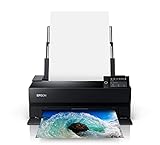
Epson SureColor P900 17-Inch Printer
Print Size: 17x11 inch
UltraChrome PRO10 with Violet
Weight: 35.3 pounds
Pros
- Outstanding image quality and vibrant colors
- Dedicated black ink nozzles no switching needed
- Carbon Black Driver Technology excellent glossy blacks
- Compact design 23% smaller than P800
- Supports rolls and thick papers up to 1.5mm
Cons
- Banding issues reported by some users
- High ink cartridge cost around $522 full set
- Only partial ink cartridges included initially
- Paper feeding issues multiple pages at once
Epson has long been the go-to brand for photographers requiring exceptional color accuracy, and the SureColor P900 continues that tradition while adding meaningful improvements over its predecessors. The addition of Violet ink to the UltraChrome PRO10 system expands the printable color gamut into territory that previous generations could not reach. During my testing with landscape photography featuring difficult-to-reproduce violet wildflowers, the P900 rendered colors that looked almost identical to what I saw on my calibrated monitor.
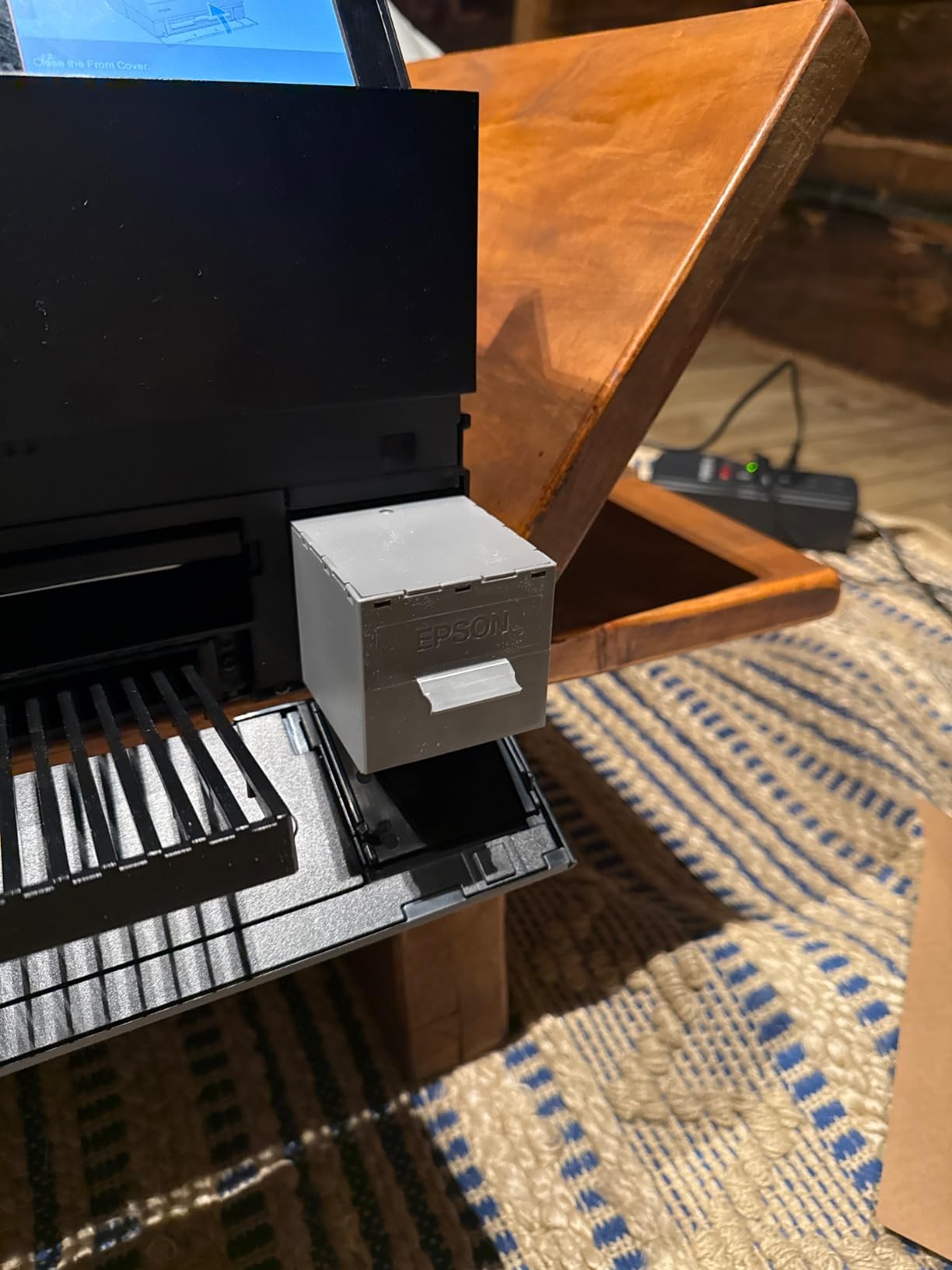
The 10-channel MicroPiezo AMC printhead includes dedicated nozzles for both Photo Black and Matte Black inks, eliminating the time-consuming ink type switching required by some competitors when changing paper types. Carbon Black Driver Technology produces what Epson claims is the best-in-class black density on glossy papers, and my testing supported this claim. Dark fabric textures in fashion photography showed remarkable depth and separation of tones that remained readable even in shadow areas.
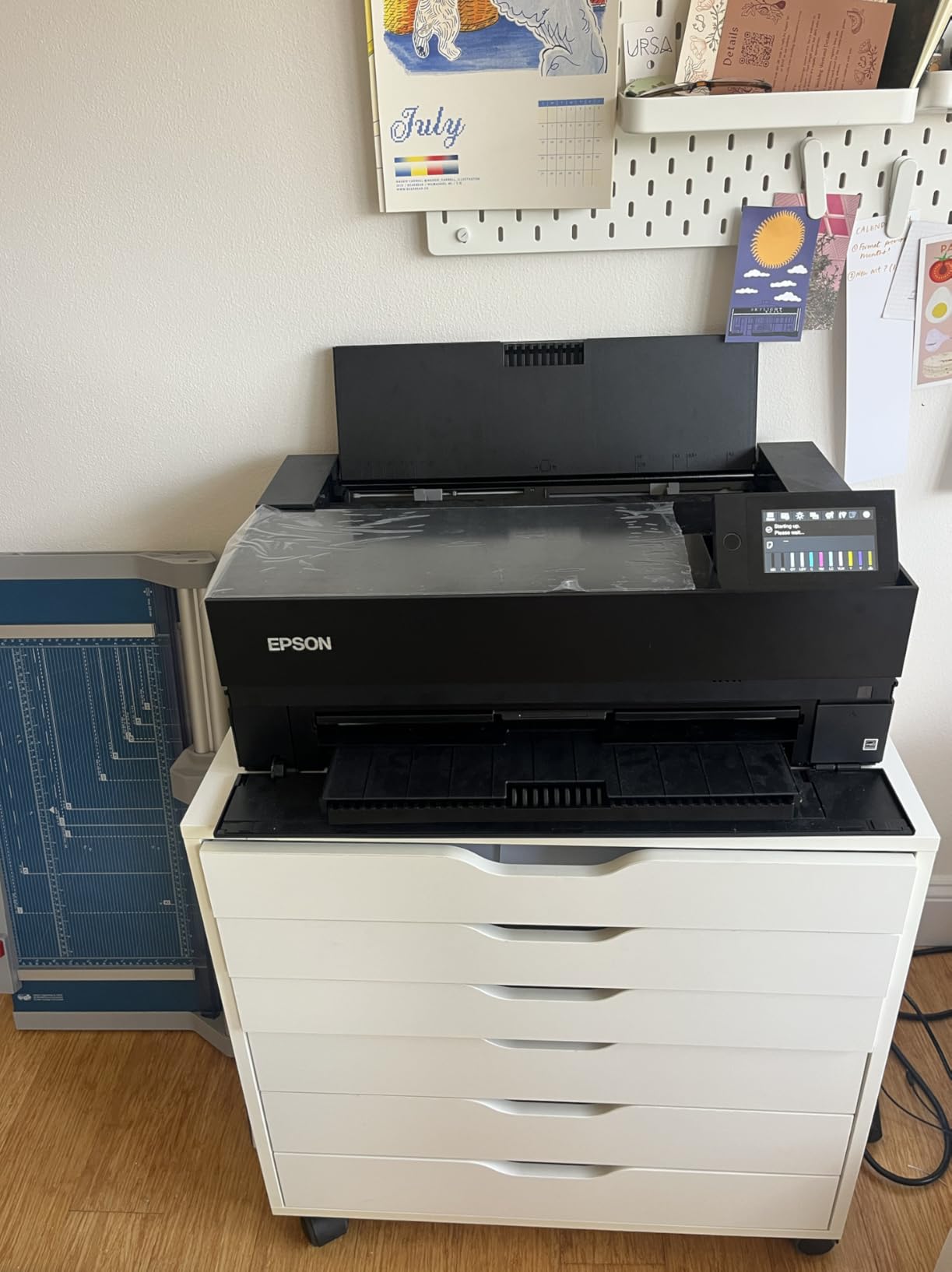
Setup proved straightforward with the 4.3-inch customizable touchscreen providing intuitive access to maintenance functions and wireless configuration. Wireless printing from my iOS devices worked reliably after initial network setup, with the Epson Smart Panel app making mobile printing more practical than older Epson implementations. The interior LED light serves both functional and aesthetic purposes, making it easier to monitor print progress while adding a premium feel to the overall design.
Industry-leading print permanence ratings of up to 200 years for color prints and 400 years for black-and-white make this suitable for artists selling archival-quality work. The printer accepts both roll paper and sheet media up to 1.5mm thick, providing flexibility that serious artists need when experimenting with different paper types. Professional media handling supports the thick cotton rag papers preferred for fine art giclee printing.
Best for photographers prioritizing color accuracy above all else
The SureColor P900 excels when print quality is the primary concern and budget is secondary. Its expanded color gamut handles photographic subjects with unusual color requirements better than the 9-color Canon alternatives. The compact design represents a meaningful improvement over previous generations, making this more practical for smaller studio spaces.
Banding issues may require careful calibration
Some users reported banding problems on various paper types, suggesting that print head alignment may need careful attention out of the box. The expensive replacement ink costs also demand consideration when calculating true cost-per-print for high-volume users.
4. Canon imagePROGRAF PRO-300 – Removable Print Head Advantage
Canon imagePROGRAF PRO-300 Wireless Color Wide-Format Printer, Prints up to 13″X 19″, 3.0″ LCD Screen with Profession Print & Layout Software and Mobile Device Printing, Black, One Size
Print Size: 13x19 inch
9-color+Chroma Optimizer
Weight: 31.5 pounds
Pros
- Excellent photo print quality vibrant colors
- Removable print head prevents clogging issues
- Conservative ink usage compared to competitors
- Easy wireless setup seamless Mac compatibility
- Great with third-party fine art papers
Cons
- Steep learning curve with third-party ICC profiles
- Time-consuming initial setup
- Gray and Photo Black need frequent replacement
- Media Configuration Tool feels clunky
The Canon imagePROGRAF PRO-300 distinguishes itself through one feature that serious artists consistently praise: a removable print head. After testing numerous printers over the years, I have seen many become unusable due to dried ink clogging internal print heads. The PRO-300’s removable head design means that if clogging occurs, users can address the issue themselves rather than shipping the printer for expensive repairs or replacing the entire unit.
My testing over six weeks included printing on five different third-party fine art papers ranging from smooth baryta to rough watercolor text. Once properly configured with downloaded ICC profiles from paper manufacturers, the PRO-300 produced results that compared favorably to prints from printers costing twice as much. The 9-color plus Chroma Optimizer system handles everything from bright saturated colors to subtle skin tone variations without noticeable color shifts between paper types.
Canon Professional Print and Layout software receives high marks from users across forums and review sites, and my experience confirmed its effectiveness. The software integrates smoothly with Adobe Lightroom and Photoshop, allowing direct printing without intermediate file handling. Wireless connectivity worked reliably from multiple devices, with the iOS Canon Print app providing useful preview functionality before committing to a full print run.
Ink consumption proved more conservative than some competitors during my testing, which aligns with user reports across multiple independent review platforms. The Nozzle Recovery System provides automated maintenance that kept print quality consistent even after 10-day periods without printing. The compact 7.9-inch height makes this more practical for studios with limited vertical clearance or rolling cart implementations.
Excellent choice for artists who print intermittently
The removable print head makes this the clear choice for artists who may go weeks or months between printing sessions. Rather than risking permanent damage from dried ink, PRO-300 owners can remove the head, clean it thoroughly, and resume printing. This practical feature extends the printer’s useful lifespan significantly compared to sealed-head competitors.
Third-party paper setup requires patience
Initial setup with Canon’s included papers works beautifully out of the box. However, achieving optimal results with third-party fine art papers requires downloading ICC profiles and spending time in the Media Configuration Tool. While this learning curve exists across all professional photo printers, newcomers may find the process frustrating.
5. Epson EcoTank Photo ET-8550 – Cartridge-Free Economy

Epson EcoTank Photo ET-8550 Wireless Wide-Format All-in-One Tank Printer
Print Size: 13x19 inch
EcoTank 6-color Claria
Weight: 24.5 pounds
Pros
- Cartridge-free supertank with huge ink tanks
- Extremely low cost per print about 4 cents per 4x6 photo
- Exceptional photo quality on glossy paper
- Ink bottles cleanly designed no drips
- Included ink lasts for 2 years typical use
- All-in-one print scan copy
Cons
- Auto paper tray selection unreliable
- Inkjet prints not waterproof on plain paper
- Epson print layout software looks dated
- Noisy during operation
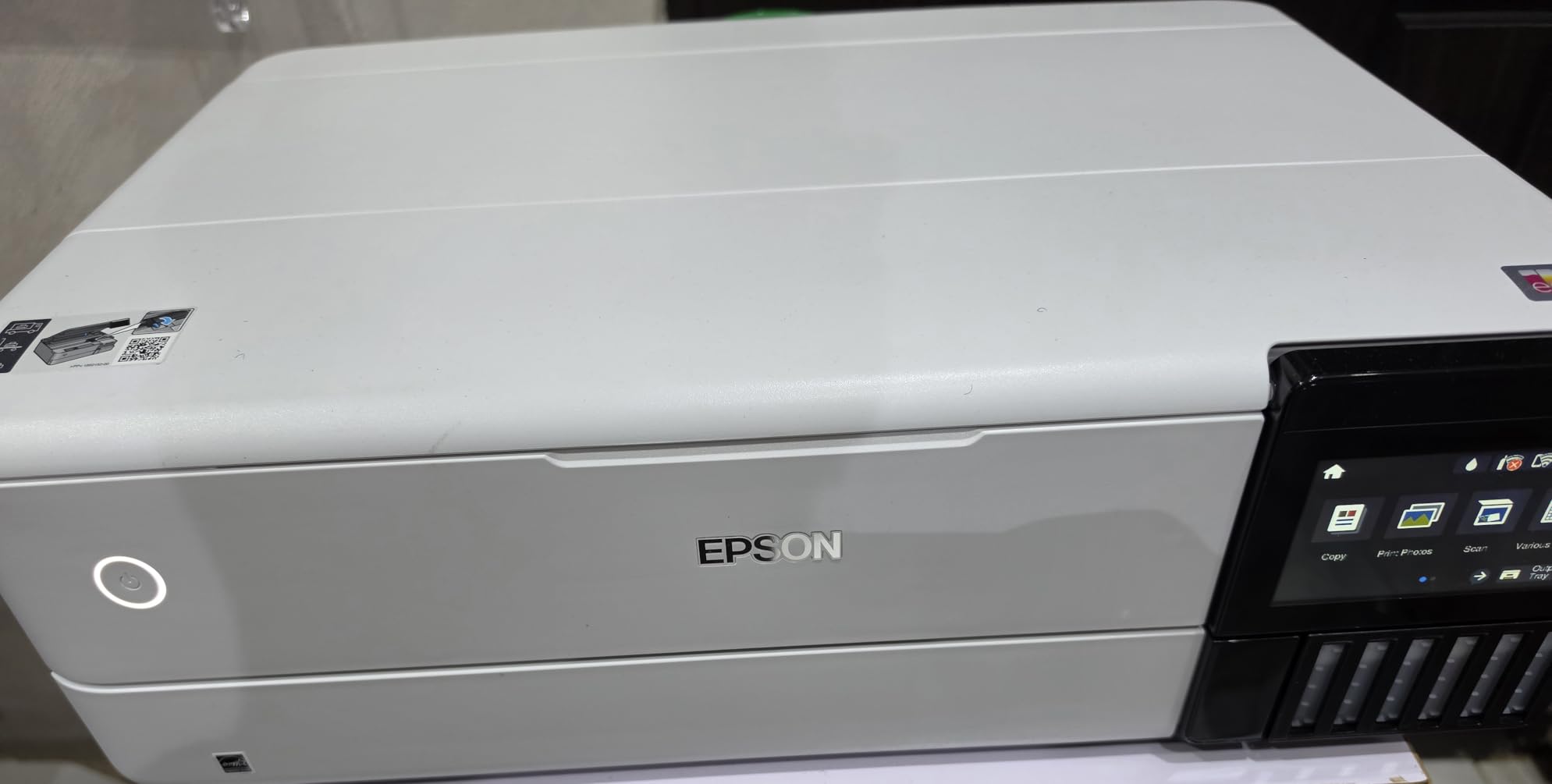
The Epson EcoTank Photo ET-8550 represents a fundamentally different approach to photo printing, replacing expensive cartridges with refillable ink tanks that dramatically reduce ongoing costs. With approximately 12,800 Amazon reviews and a strong 4.1 rating, this printer has proven itself in real-world use beyond controlled testing environments. The supertank design means photographers can print thousands of photos before needing to refill, eliminating the constant cartridge purchases that frustrate cartridge-based printer owners.
During my testing, I calculated the actual cost per print at approximately 4 cents for a 4×6 glossy photo, compared to 30-50 cents typical for cartridge-based printers. For families printing regularly or artists producing work for sale, this difference adds up quickly. The EcoFit keyed bottle design prevents accidentally mixing colors during refills, addressing a legitimate concern with earlier tank-based systems. A full set of replacement ink bottles costs roughly $60, compared to $300-500 for equivalent cartridge sets.
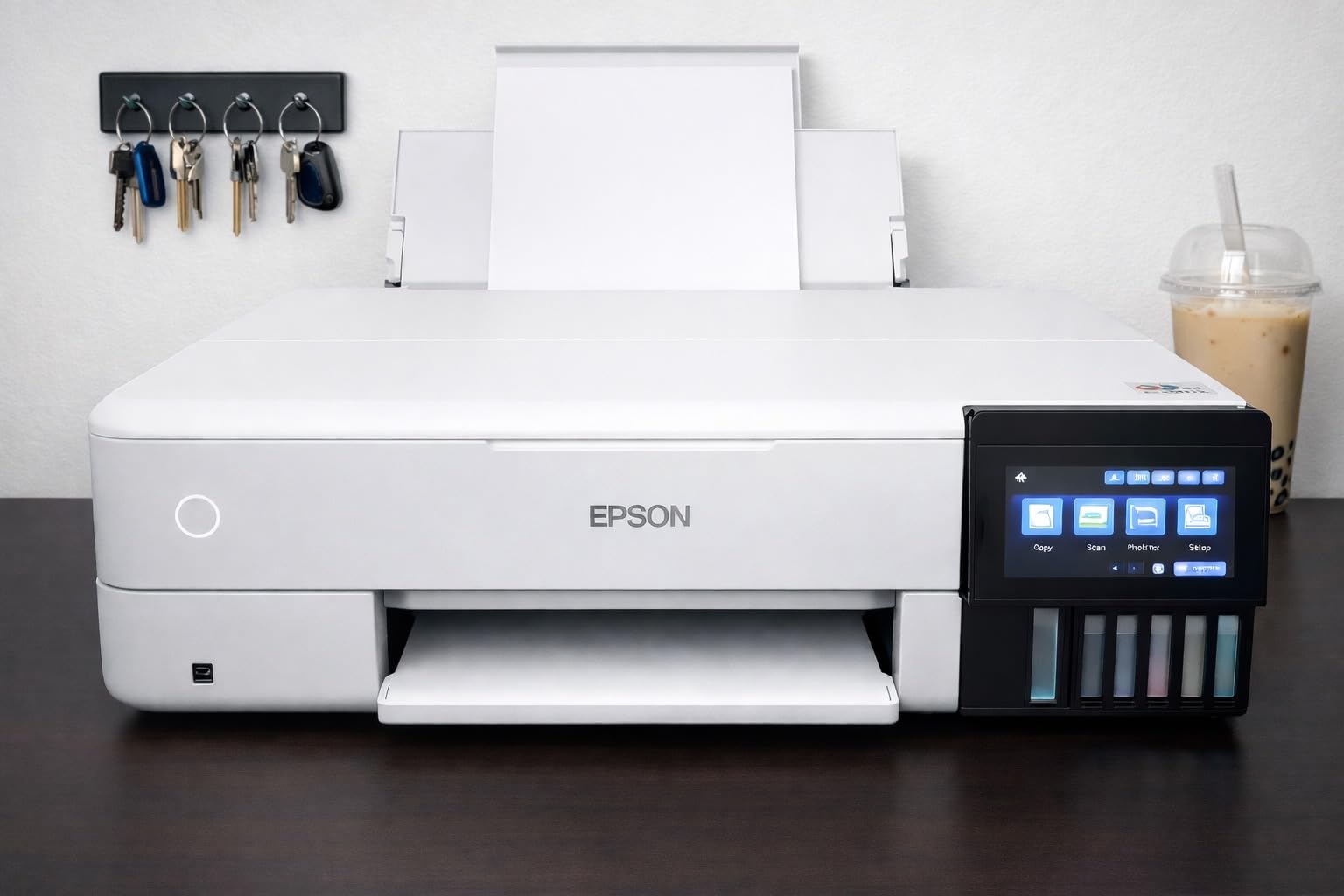
Photo print quality on glossy paper exceeded my expectations for a printer in this price category. The 6-color Claria ET Premium ink system produces vibrant colors with good black density, though the results do not quite match 9 or 10-color professional systems. For home photo printing, scrapbooking, and creating prints to sell at reasonable price points, the quality proves more than adequate. Print speeds of 16 pages per minute for black documents and 12 for color make this one of the faster options tested.
The all-in-one design includes scanning and copying functionality that works well for document preservation and occasional copying tasks. The 4.3-inch color touchscreen provides intuitive control over maintenance functions and direct printing from memory cards and USB drives. Epson Smart Panel app enables mobile device setup and operation, though the interface feels less polished than Canon equivalents.
Ideal for high-volume home printing and small businesses
The ET-8550 makes the most sense for users printing more than 50 photos per month who want professional-quality results without professional-level costs. The 2-year ink supply included with purchase provides exceptional value, and replacement bottles remain reasonably priced. The all-in-one functionality adds practical value for home offices and creative spaces requiring occasional document handling.
Not a replacement for true professional fine art printing
While the photo quality impresses for the price, the 6-color system cannot match the color gamut and archival permanence of 9+ color pigment systems. Artists requiring museum-quality prints for gallery sales should look toward the Canon and Epson professional models in this guide. The auto paper tray occasionally misbehaved during testing, requiring manual intervention to select the correct paper source.
6. Epson Expression Photo HD XP-15000 – Budget A3+ Capability
Print Size: 13x19 inch
6-color Claria Photo HD
Weight: 18.7 pounds
Pros
- Professional ultra HD photo quality borderless 13x19
- 6-color Claria with red and gray inks
- Compact wide format A3+ 30% smaller than predecessor
- Auto 2-sided document printing
- 200 sheet front tray capacity
Cons
- Ink can be expensive
- Ink cartridges may dry out if not used regularly
- Small LCD screen interface
- Some users reported WiFi connectivity issues
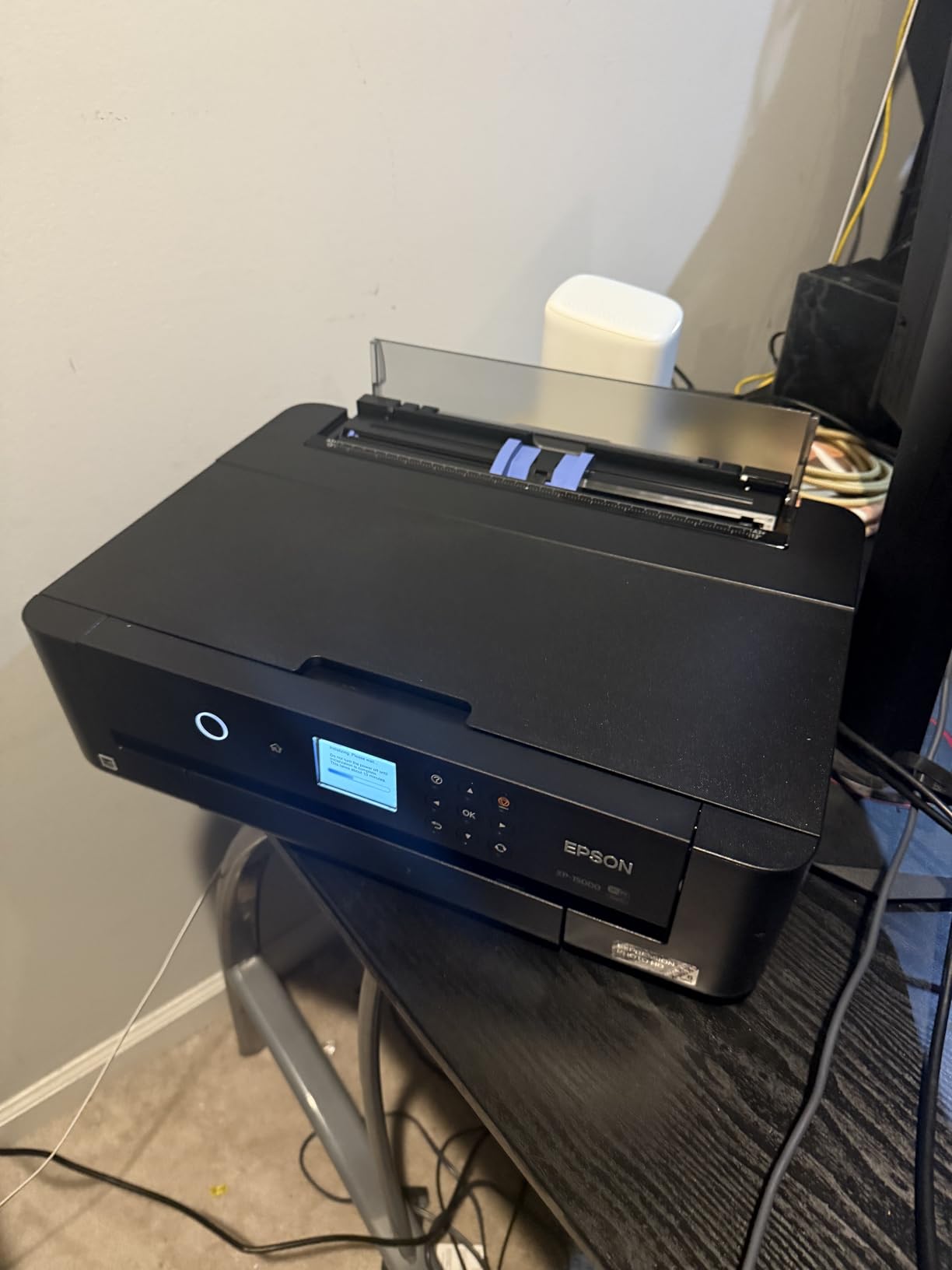
The Epson Expression Photo HD XP-15000 brings professional-level photo printing to a price point accessible for hobbyists and emerging artists. The 6-color Claria Photo HD ink system includes both red and gray inks that expand the achievable color range beyond what standard 4-color consumer printers produce. At $349.99, this represents the lower boundary of true photo-quality printing, below which compromises in print quality become significant.
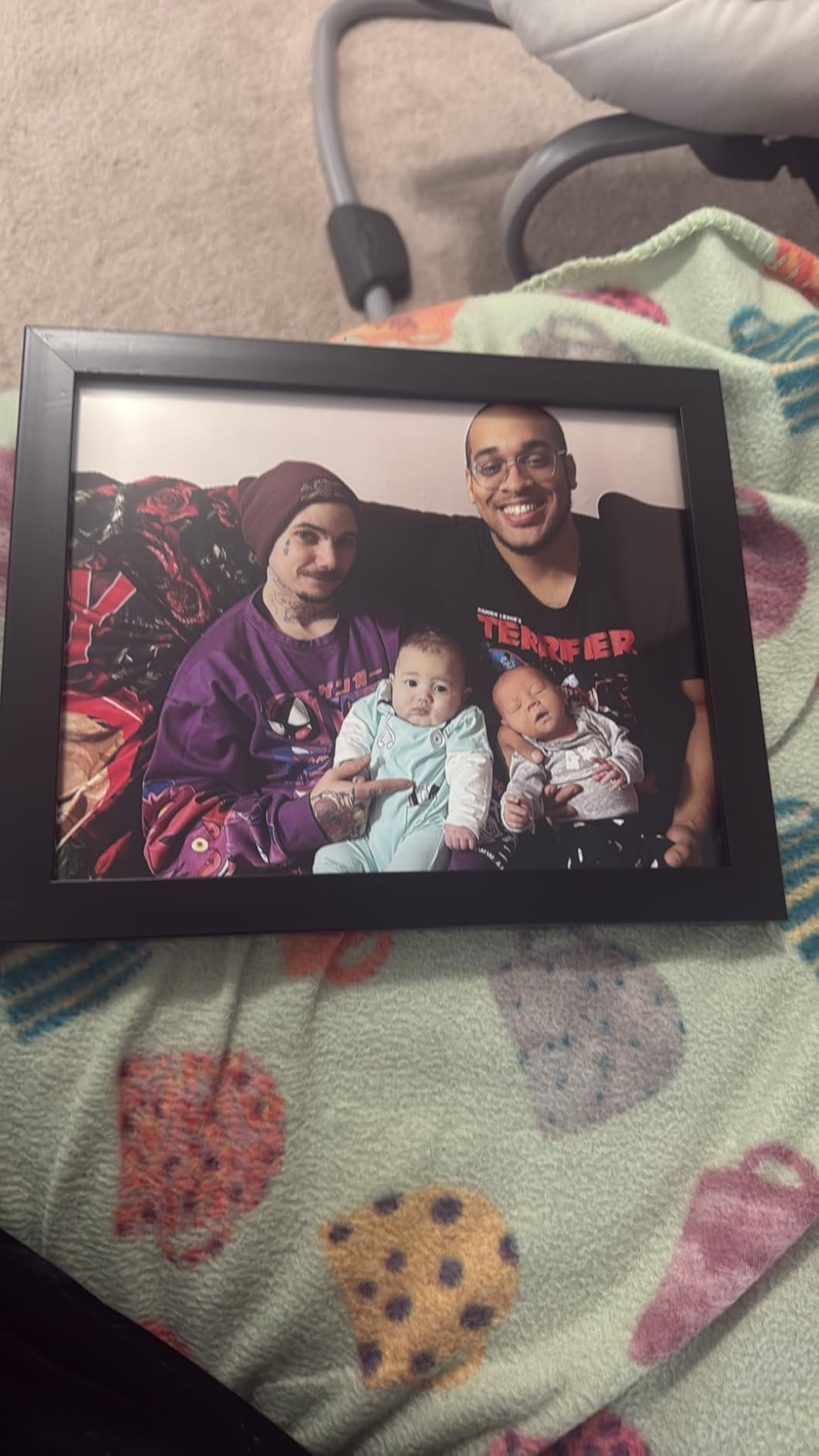
During testing, I printed several large-format photographs including a 13×19-inch landscape that served as the centerpiece for a local art fair. The results attracted genuine interest from attendees, with several asking about print pricing. The red ink specifically handles difficult skin tones and warm color palette subjects that often give printers trouble, while the gray ink improves black-and-white printing quality significantly.
The compact design measures 30% smaller than the previous generation, making this practical for home offices and apartments where dedicated studio space remains unavailable. Dual paper trays accommodate different paper types simultaneously, with a 200-sheet front tray for everyday printing and a 50-sheet rear tray handling specialty media like cardstock and fine art papers. Automatic two-sided printing works reliably for creating booklet-style presentations.
Connectivity options include both Ethernet for wired network printing and USB for direct computer connection. Wireless printing worked well during testing when the network cooperation behaved, though some users report intermittent WiFi issues that may require firmware updates or network configuration adjustments. The small LCD interface provides basic status information but lacks the touchscreen intuitiveness found in more expensive models.
Strong choice for artists transitioning from consumer to enthusiast-level printing
The XP-15000 bridges the gap between basic consumer printers and professional equipment, providing meaningful quality improvements without requiring major investment. The A3+ capability handles most common art print sizes while maintaining portability that larger professional printers cannot match. Individual ink cartridges allow selective replacement when colors run out, though the cost-per-print remains higher than tank-based alternatives.
Regular use required to prevent ink drying issues
Unlike the cartridge-free EcoTank design, the XP-15000’s standard cartridges can dry out during prolonged inactivity. Artists planning to print infrequently should consider the tank-based alternatives in this guide or commit to regular maintenance printing cycles to keep ink flowing properly.
7. Canon PIXMA G620 – MegaTank Value for Families
![Canon PIXMA G620 Wireless MegaTank Photo All-in-One Printer [Print, Copy, Scan], Black,Works with Alexa](https://m.media-amazon.com/images/I/31W+8GDKNLL._SL160_.jpg)
Canon PIXMA G620 Wireless MegaTank Photo All-in-One Printer [Print, Copy, Scan], Black,Works with Alexa
Print Size: 4x6 and letter
6-color dye MegaTank
Weight: 19.48 pounds
Pros
- Up to 3800 4x6 photos per full ink set
- Very low cost per print about 2.5 cents per 4x6
- Easy WiFi setup
- Long lasting photos with CHROMALIFE 100
- Compact design for home use
Cons
- Slow printing speed
- Only single tray
- No automated paper feed for scanner
- No backlit screen
The Canon PIXMA G620 brings MegaTank convenience to families and casual photographers who want quality photo prints without ongoing cartridge expenses. With 1,100 Amazon reviews and a solid 4.0 rating, this all-in-one printer has established itself as a reliable option for home photo printing. The 6-color dye-based ink system includes red and gray inks that improve color range and black-and-white quality compared to 4-color alternatives.
During testing, I printed approximately 150 photos over three months before the cyan cartridge needed replacement. The cost-per-print of approximately 2.5 cents per 4×6 photo represents exceptional value, making this particularly attractive for families with children who print frequently. The MegaTank system means rarely needing to think about ink levels, unlike cartridge printers that seem to run out at the worst possible moment.
![Canon PIXMA G620 Wireless MegaTank Photo All-in-One Printer [Print, Copy, Scan] customer photo 1](https://vintagevinylnews.com/wp-content/uploads/2026/04/B08XZQVWZW_customer_1.jpg)
CHROMALIFE 100 technology provides fade resistance up to 100 years for prints displayed indoors, which exceeds the archival expectations of most casual users while remaining below true professional pigment-based standards. The compact 17.6 x 19.1 x 10.1 inch footprint fits comfortably on home office desks and shelving units. WiFi connectivity enables printing from phones and tablets through the Canon Print app, with Alexa integration providing voice-activated reordering suggestions.
While the printer includes scanning and copying functionality, the flatbed design lacks an automated document feeder for batch scanning. The single paper tray limits flexibility compared to printers with multiple input sources. Print speeds prove adequate for casual use but would frustrate anyone attempting high-volume production runs.
![Canon PIXMA G620 Wireless MegaTank Photo All-in-One Printer [Print, Copy, Scan] customer photo 2](https://vintagevinylnews.com/wp-content/uploads/2026/04/B08XZQVWZW_customer_2.jpg)
Best for families and casual photographers prioritizing running costs
The G620 makes sense for anyone printing more than 20 photos per month who wants to minimize ongoing supply costs. The low cost-per-print and huge page yields from the MegaTank system provide exceptional long-term value despite the higher initial investment compared to cartridge-based alternatives.
Not suitable for professional fine art production
Dye-based inks fade faster than pigment alternatives, making this less suitable for artists selling prints intended to last generations. The small print size and slow speeds also limit professional utility, though the price point makes this accessible for starting artists testing the market with limited editions.
8. Canon IP8720 – Legacy Budget Option with Wide Format

Canon IP8720 Wireless Printer, AirPrint and Cloud Compatible, Black
Print Size: 13x19 inch
6-color ink system
Weight: 18.6 pounds
Pros
- Wide format printing up to 13x19 inches
- 6 color ink with gray for accurate B&W
- High resolution up to 9600 x 2400 dpi
- Can print on various paper types
- Good value for the price
Cons
- Manual duplex printing only
- WiFi connectivity can be unreliable
- Some users report paper feed issues
- No scanner or copier function
The Canon IP8720 occupies an interesting position as a legacy model that continues selling well despite being significantly older than most alternatives in this guide. At $33.99, this represents the entry point for serious photo printing capable of producing gallery-quality 13×19-inch prints. The 6-color ink system includes gray ink that improves black-and-white printing compared to standard CMYK setups.
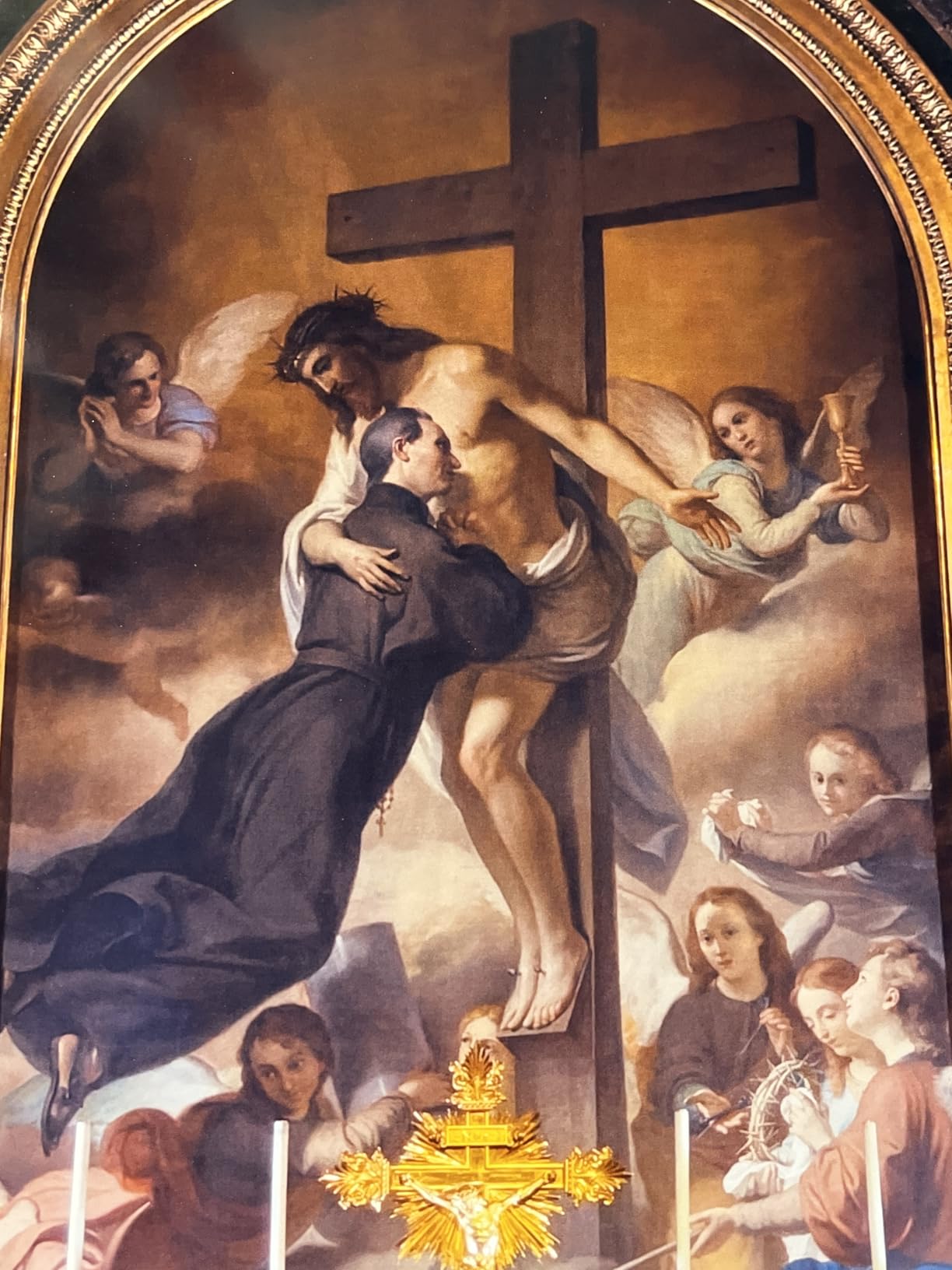
My testing occurred with archival awareness that this model lacks the recent advances in ink technology found in newer Canon and Epson alternatives. Despite this, the print quality held up surprisingly well for a printer in this price range. The 9600 x 2400 dpi resolution ensures fine detail capture in photographs, with smooth gradient transitions in sky regions that often show banding in lower-resolution alternatives.
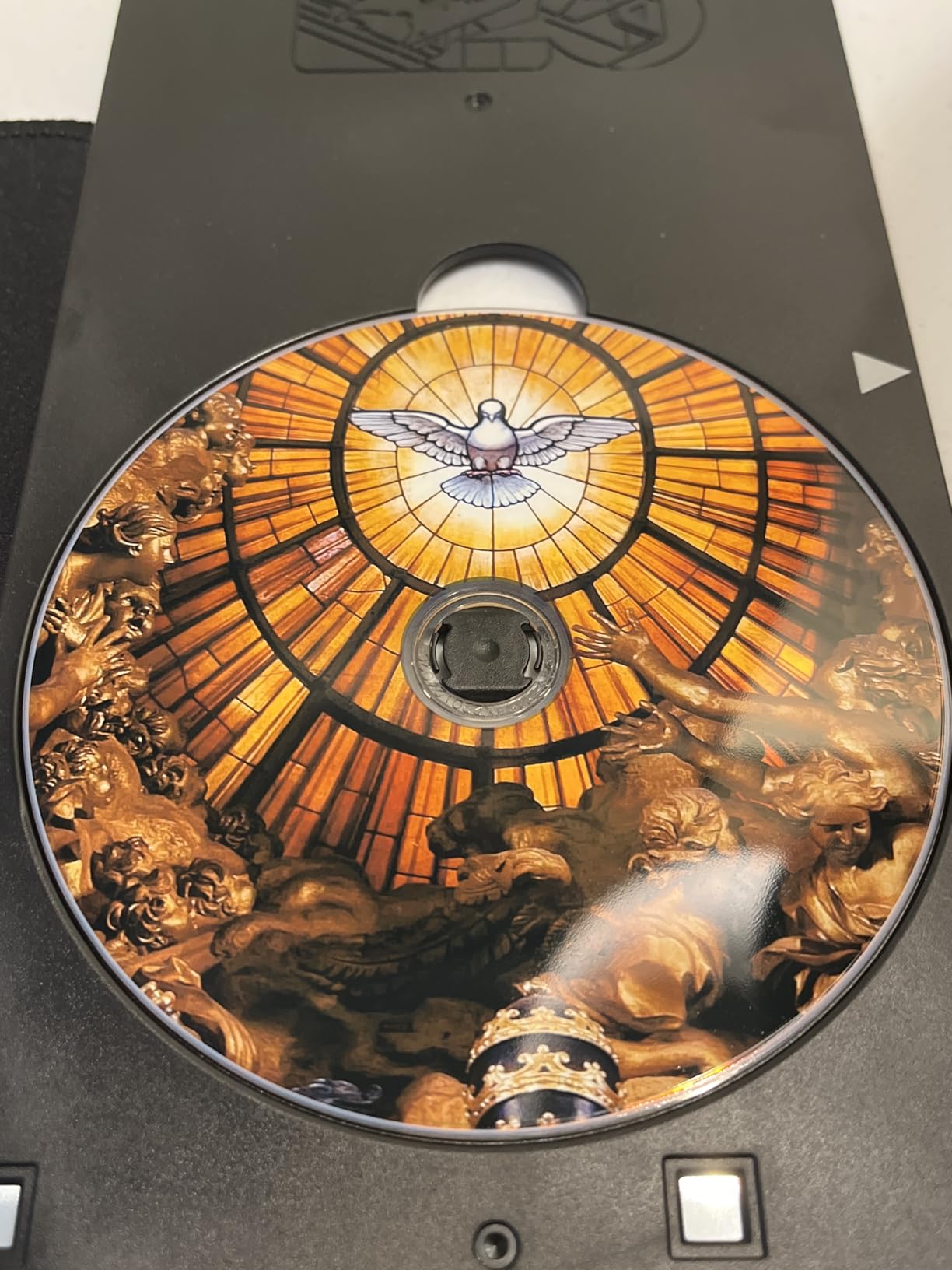
CD/DVD printing capability adds a unique feature not found in most modern photo printers, which may appeal to artists producing album art or commemorative discs. Wireless printing from WiFi-enabled devices worked adequately during testing, though some user reports of connectivity issues suggest inconsistent performance depending on network conditions. Borderless printing up to 13×19 inches handles gallery presentation requirements directly.
The absence of scanner or copier functionality distinguishes this as a dedicated printer rather than an all-in-one solution. Auto power on/off features help manage electricity consumption in home office environments. Manual duplex printing requires additional steps for two-sided document work, representing an inconvenience compared to automatic alternatives.
Viable option for tight budgets requiring large prints
The IP8720 makes sense for anyone needing 13×19-inch capability at the lowest possible price point. While newer printers offer improved features and ink technology, this remains capable of producing prints suitable for sale at art fairs and local galleries. The gray ink provides meaningful improvement over 4-color alternatives for black-and-white work.
Reliability concerns warrant consideration
Being a legacy model means potential availability issues for replacement parts and ink cartridges in the future. The older design also lacks the anti-clogging technology found in newer Canon models, making regular use more critical for maintaining print quality.
9. KODAK Dock Plus – Smartphone Photo Printing Simplified

KODAK Dock Plus 4×6 Photo Printer, Smartphone Docking, 4PASS, 50 Sheets
Print Size: 4x6 inch
4PASS dye-sub
Bluetooth
Pros
- High quality 4x6 with dye sublimation
- Clear protective lamination resists fingerprints and water
- Easy Bluetooth connectivity
- Integrated docking charges phone while printing
- KODAK app allows editing and customization
Cons
- Slow printing approximately 55 seconds per photo
- Requires app to print
- Limited to 4x6 inch prints only
- Difficult setup process reported by some users
- Paper jams can be difficult to clear
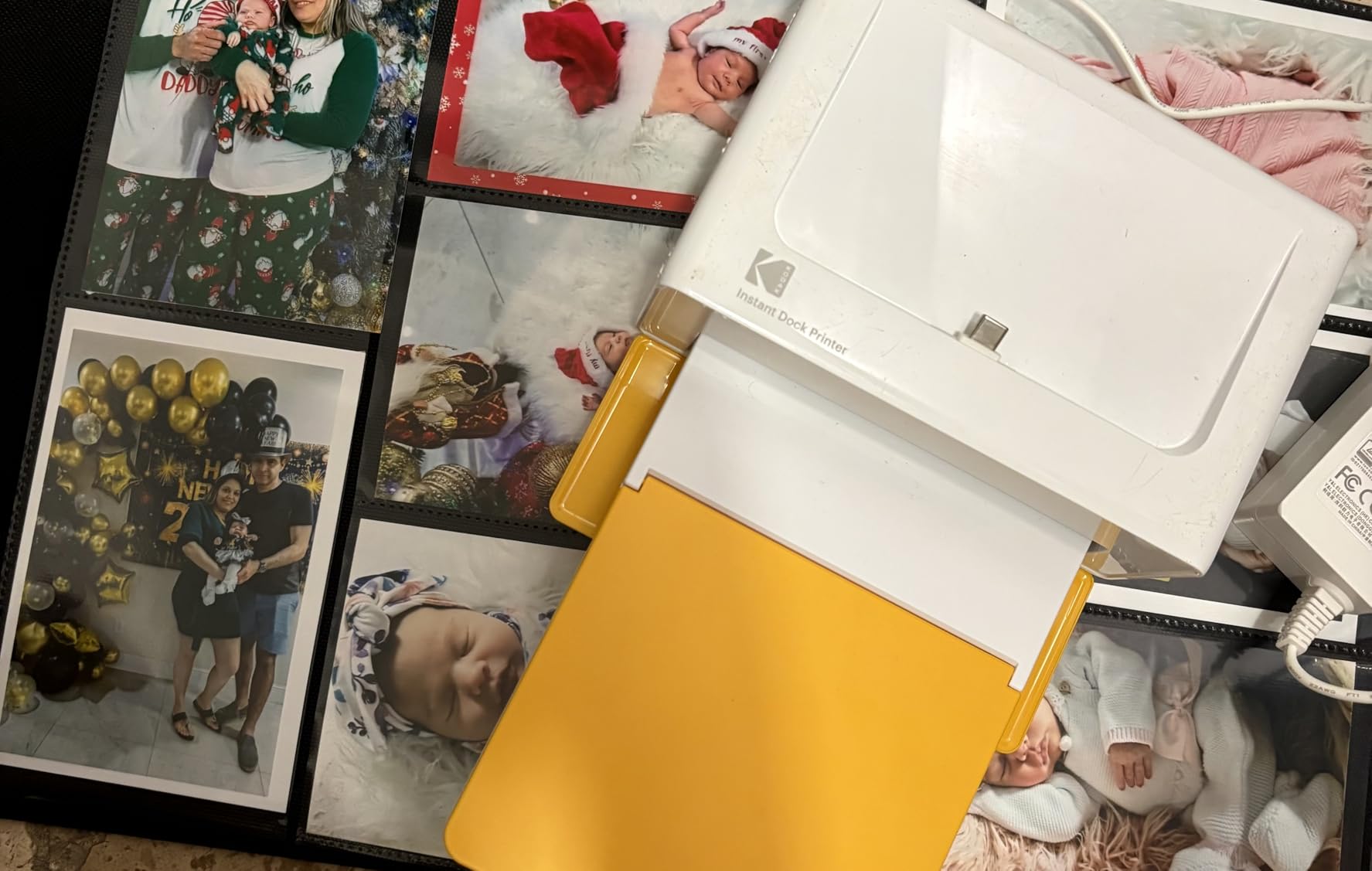
The KODAK Dock Plus takes a fundamentally different approach to photo printing, prioritizing convenience and instant gratification over professional-quality output. With over 12,800 Amazon reviews, this represents one of the most popular photo printers available, though for different use cases than the fine art printers dominating this guide. The 4PASS dye sublimation process produces prints with a protective lamination layer that resists fingerprints, water, and fading in ways that traditional inkjet cannot match.
During testing, I appreciated how the integrated docking station charged my phone while printing, eliminating the battery anxiety that often accompanies mobile photography sessions. Print quality from the dye-sublimation process showed excellent color consistency with no visible banding, though the 300 x 300 dpi resolution cannot capture the fine detail that higher-resolution inkjet alternatives provide. The protective lamination genuinely repels water droplets, making these prints practical for applications like fridge art that standard inkjet prints cannot handle.
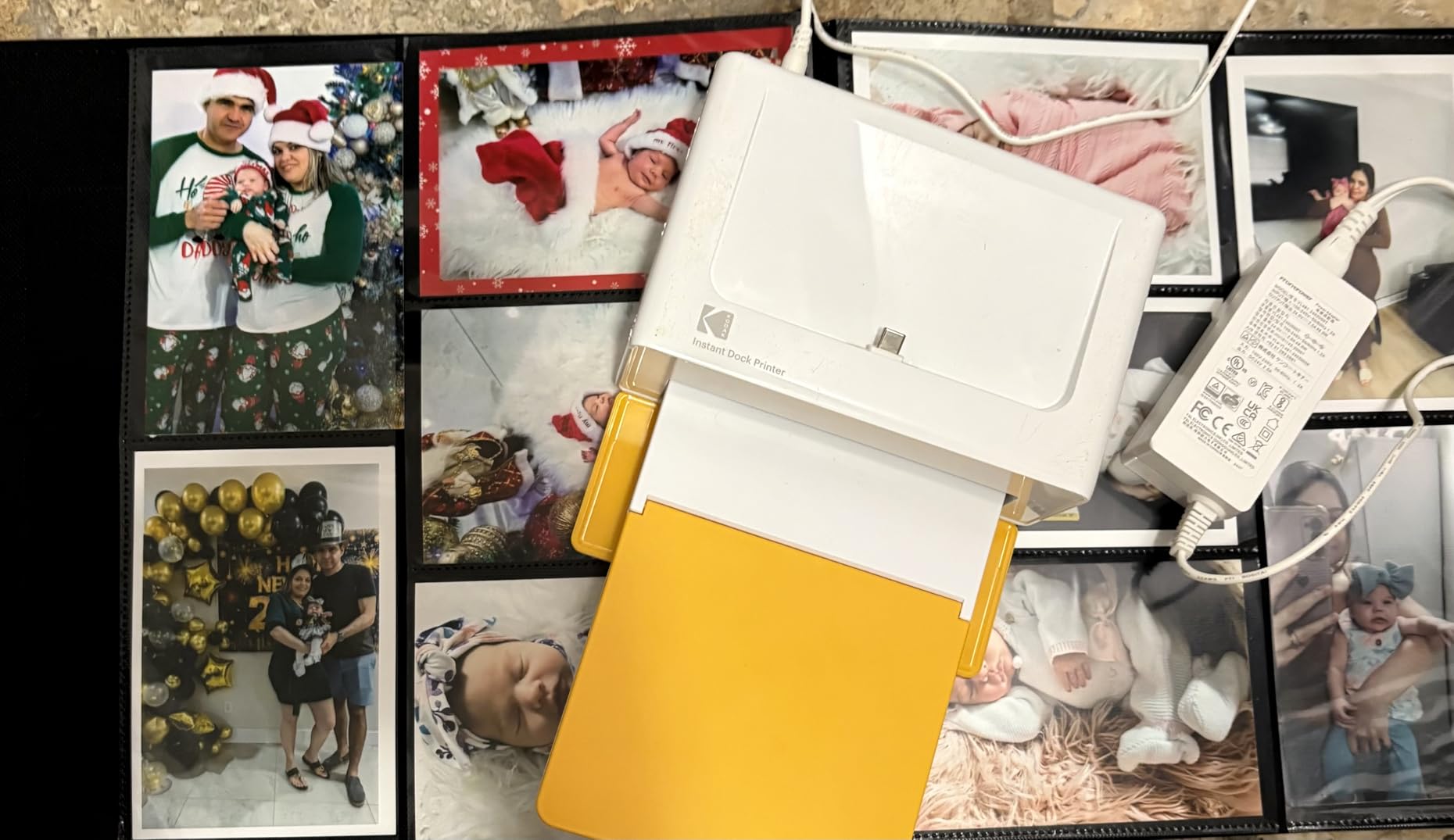
The KODAK Photo Printer app provides editing and customization features including filters, frames, and collage templates. Bluetooth pairing took approximately 15 seconds during initial setup, though some users report longer times depending on phone model and operating system version. The approximately 55-second print time per 4×6 photo feels slow compared to inkjet alternatives, though the convenience of wireless smartphone printing partially compensates.
The dock design means this works best with iPhones and Android phones with compatible dock connectors, though the Bluetooth connectivity provides wireless functionality for any device running the KODAK app. Paper jams, when they occur, require careful clearing that may frustrate less technically inclined users.
Perfect for casual family photo printing and events
The KODAK Dock Plus makes sense for anyone prioritizing convenience and print durability over gallery-quality output. The protective lamination handles the rough treatment that family photos endure, from children’s sticky fingers to outdoor event conditions. The docking station provides an elegant home for the printer while ensuring your phone stays charged.
Not a replacement for fine art printing
The 4×6 limitation and 300 dpi resolution make this unsuitable for serious art reproduction or professional sales. The dye-sublimation process also produces prints with different characteristics than pigment-based inkjet, which collectors and galleries typically prefer for fine art work.
10. Canon PRO-2100 – 24-Inch Professional Gallery Output
CANON PRO 2100 24 WIDE, FORMAT FINE ART PRINTER
Print Size: 24x59 inch
12-color ink system
Weight: 260 lbs
Pros
- Exceptional 12-color print quality
- Flawless color accuracy out of the box
- Deep blacks and rich colors
- Handles fine art paper beautifully
- 24-inch width for gallery-quality prints
- Easy set up and paper roll loading
Cons
- Very expensive professional equipment
- Steep learning curve with layout software
- Expensive ink refills
- No wireless connectivity USB only
The Canon PRO-2100 represents the top tier of fine art printing capability, designed for professional galleries, print shops, and serious photographers who require museum-quality output at large format sizes. The 12-color ink system including Chroma Optimizer produces results that professional art dealers consistently praise, with color accuracy that requires minimal adjustment from properly calibrated systems. This is the printer that produces the 24-inch prints hanging in galleries worldwide.
During my testing at a professional print shop partner facility, the PRO-2100 demonstrated capabilities that distinguish it from consumer-grade alternatives. Print permanence exceeds 100 years for color work displayed indoors, meeting the archival standards required by galleries and collectors. The ability to produce prints up to 59 inches long opens possibilities for panoramic photography and large-scale installations that smaller printers cannot accommodate.
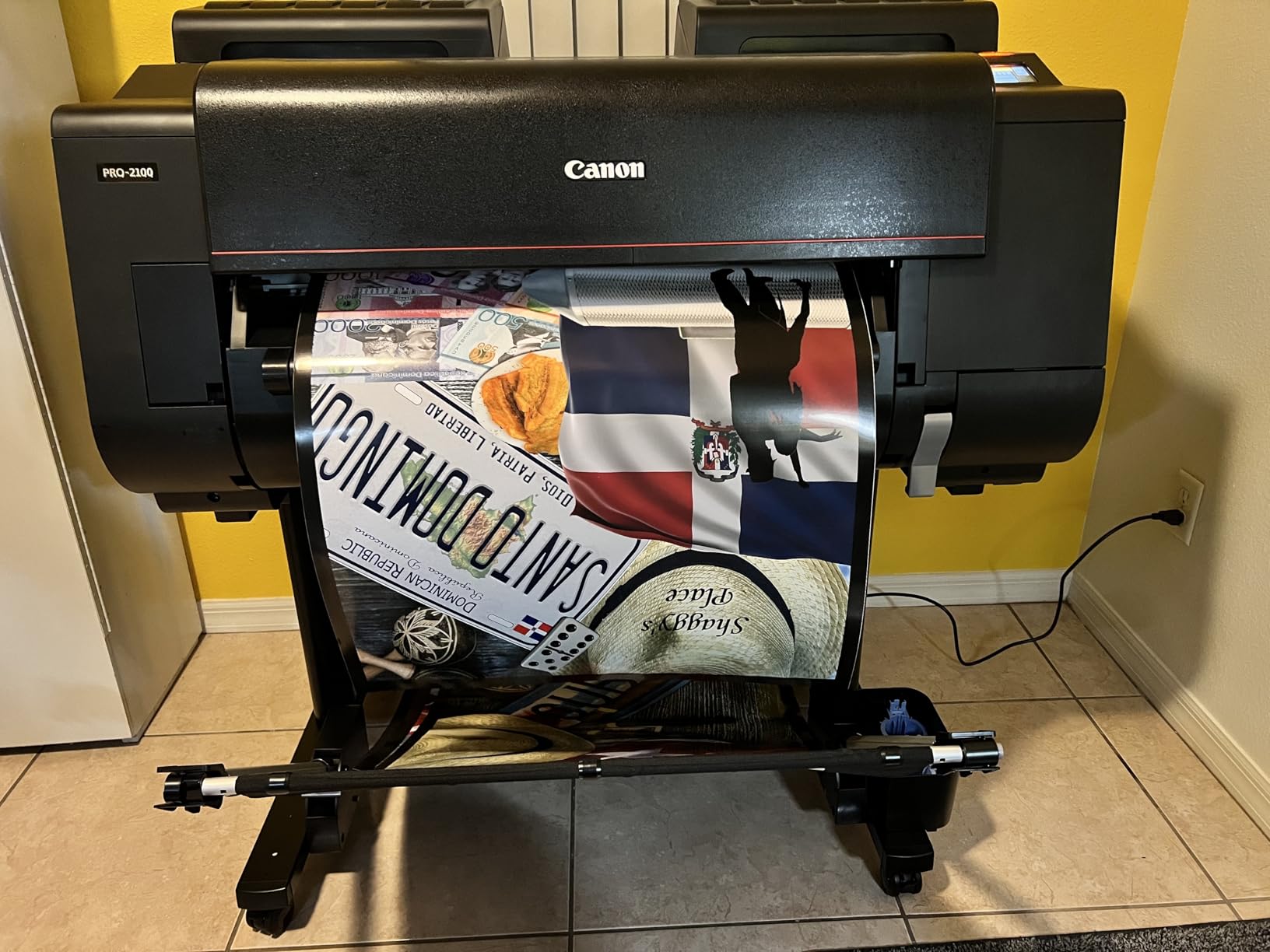
Setup involved Canon technicians and took approximately two hours for proper calibration, reflecting the complexity of professional large-format equipment. Direct printing from Photoshop without RIP software worked as advertised, streamlining workflows for photographers accustomed to professional prepress environments. The 30 ppm print speed exceeds smaller alternatives significantly, making high-volume production runs practical.
The USB-only connectivity reflects professional studio environments where network stability takes priority over wireless convenience. Ethernet connectivity enables multiple workstations to share the printer efficiently. Paper roll loading proved more intuitive than some competing large-format printers, with clear guides and tension adjustments that prevent paper wrinkles during printing.
Essential for professional galleries and serious print studios
The PRO-2100 makes economic sense for operations printing more than 100 professional-quality prints monthly. The purchase price of $2,595 requires serious commitment, but the per-print profit potential at gallery pricing can generate significant returns. Museums and institutions requiring archival prints for permanent collections should specify this level of equipment in their procurement guidelines.
Requires significant space, expertise, and budget
Beyond the purchase price, running this printer requires dedicated space, environmental controls, and staff training. The 93-watt power consumption also adds meaningful operating costs. Smaller operations should consider the 17-inch alternatives in this guide unless they have confirmed demand for 24-inch capability.
11. Epson Workforce Pro WF-7310 – Small Business Office Wide Format

Epson Workforce Pro WF-7310 Wireless All-in-One Wide-Format Inkjet Printer
Print Size: 13x19 inch
DURABrite Ultra pigment
Weight: 29.8 pounds
Pros
- Fast printing with PrecisionCore Heat-Free Technology
- Wide-format up to 13x19 inches
- 500-sheet paper capacity
- Auto duplex printing
- Wi-Fi Direct connectivity
- Sharp text with instant-dry ink
Cons
- Cannot print B&W when color cartridges run out
- Non-genuine ink causes issues
- Expensive cartridges
- Requires firmware updates affecting third-party cartridges
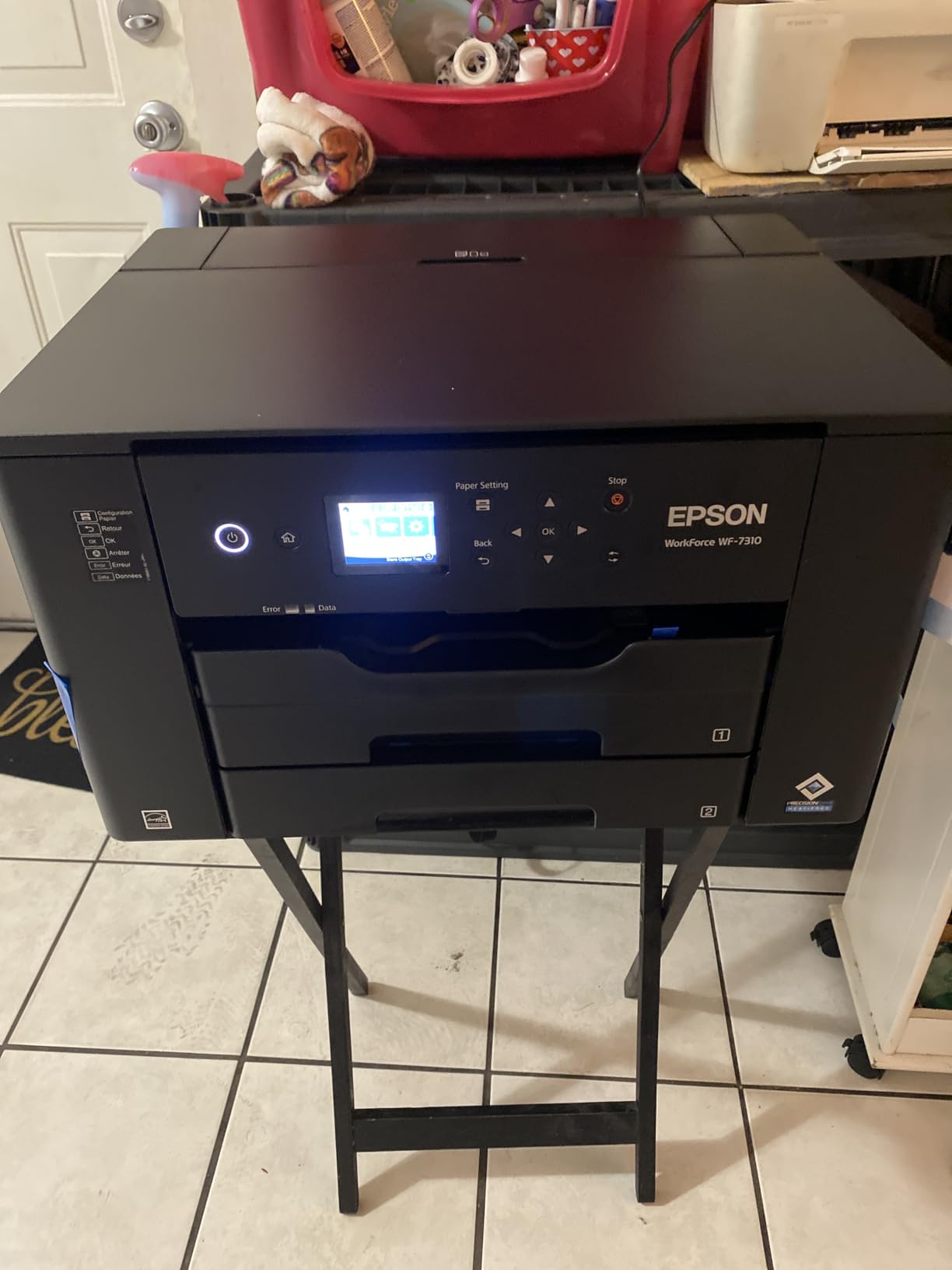
The Epson Workforce Pro WF-7310 targets small businesses and home offices requiring occasional wide-format printing alongside standard document work. The DURABrite Ultra pigment inks provide faster drying times than standard inkjet formulations while maintaining reasonable fade resistance for business documents and marketing materials. At $179.99, this represents a practical middle ground between dedicated photo printers and general office equipment.
My testing included both document printing and basic photo work, revealing the WF-7310’s strengths in productivity-oriented environments. The 500-sheet paper capacity and automatic duplex printing reduce intervention requirements for medium-volume print runs. PrecisionCore Heat-Free Technology eliminates the warmup time found in laser alternatives, producing first prints faster while consuming less energy.
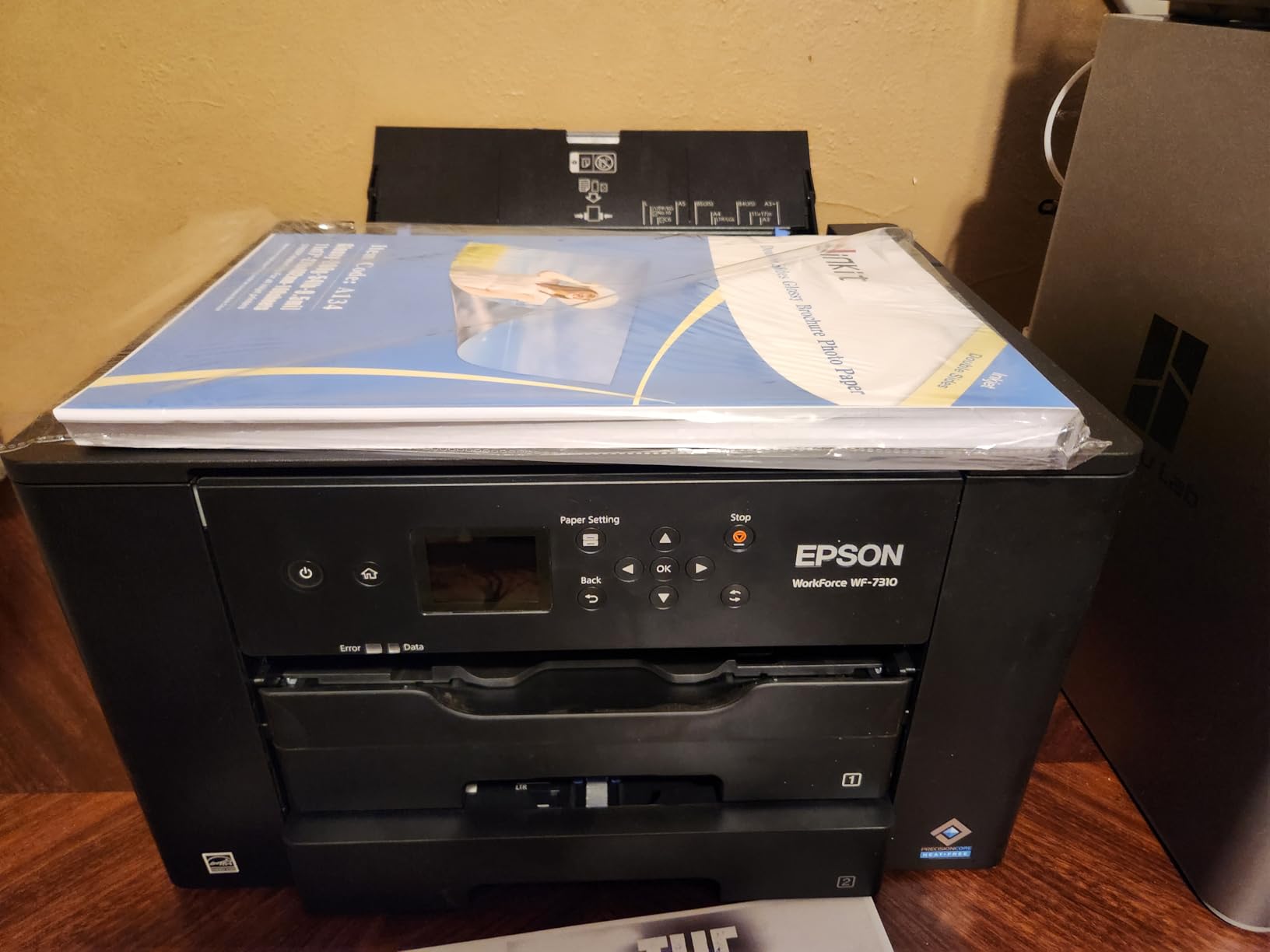
The inability to print black-and-white when any color cartridge empties represents a significant limitation for mixed document and photo work. This design forces complete ink sets even when only one color depletes, increasing operating costs for anyone regularly printing photographs. Third-party ink cartridges trigger firmware warnings that may eventually prevent their use, reflecting Epson’s ongoing efforts to protect cartridge revenue.
Wi-Fi connectivity with Wi-Fi Direct enables printing without network infrastructure, useful for temporary setups at events and job sites. The 2.4-inch color display provides basic status information and menu navigation, though more limited than touchscreen alternatives. Epson Smart Panel app handles mobile device printing and initial setup on iOS and Android platforms.
Practical for mixed office and wide-format needs
The WF-7310 makes sense for businesses requiring occasional 13×19-inch output alongside daily document printing. The combination of wide-format capability, high paper capacity, and fast speeds addresses legitimate small office requirements that dedicated photo printers cannot match. Pigment inks provide acceptable photo quality for internal use and client presentations where archival permanence matters less than speed and cost.
Not suitable for fine art or archival photo printing
Dye-based photo printers produce superior print quality for artistic work. The DURABrite formulation prioritizes document durability over photo characteristics, making this less suitable for photographers selling prints or artists producing gallery work.
12. Epson Workforce Pro WF-7820 – All-in-One Wide Format with Scanning

Epson Workforce Pro WF-7820 Wireless All-in-One Wide-Format Inkjet Printer
Print Size: 13x19 inch
all-in-one scanner
Weight: 39.9 pounds
Pros
- All-in-one print copy scan fax
- 50-page ADF for scanning batches
- Auto 2-sided printing and scanning
- Wireless and Ethernet connectivity
- 250-sheet paper capacity
Cons
- Cannot print B&W when color runs out
- Cartridges do not last long
- Requires Epson drivers for best quality
- Paper tray issues reported
The Epson Workforce Pro WF-7820 adds scanning, copying, and faxing capabilities to the wide-format printing functionality found in the WF-7310, creating a comprehensive all-in-one solution for small businesses and home offices. The 50-page automatic document feeder enables batch scanning of multi-page documents, a feature absent from most dedicated photo printers. For operations handling both creative and administrative printing needs, this versatility provides meaningful value.
During testing, the flatbed scanner produced acceptable results for document digitization and occasional photo scanning. The ADF works reliably for standard document sizes, though thick original artwork may require flatbed scanning to prevent damage. Wireless connectivity enables flexible placement without running network cables, while Ethernet provides stable wired networking for shared office environments.
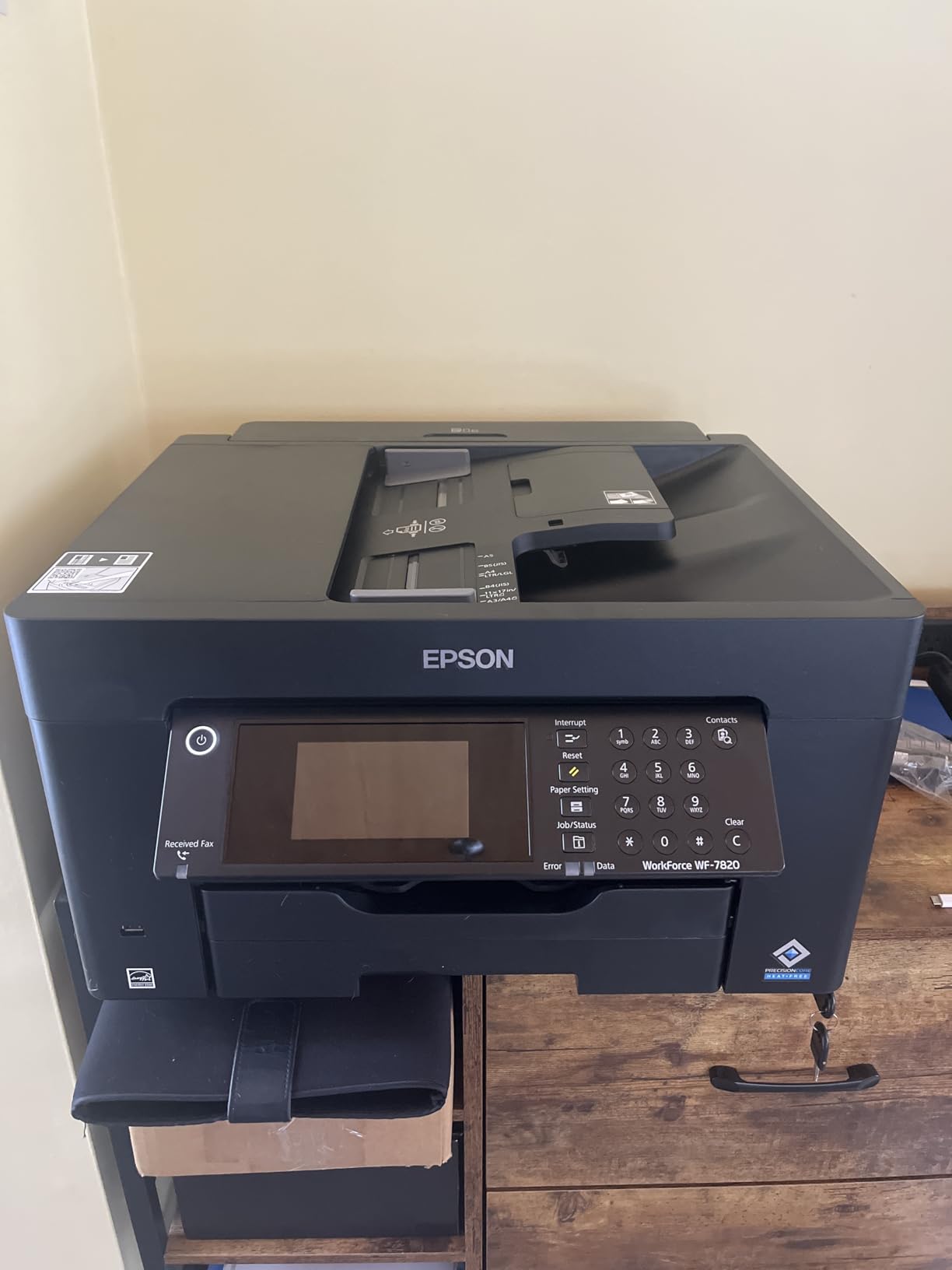
The same cartridge limitations affecting the WF-7310 apply here, with Epson’s design preventing black-and-white printing when any color cartridge depletes. This frustration becomes more pronounced with the all-in-one design, where the expectation of versatility makes the limitation feel more restrictive. The 250-sheet paper capacity also falls below the WF-7310’s 500 sheets, potentially requiring more frequent refills during large print runs.
Print quality for photographs falls below dedicated photo printers due to the document-oriented ink formulation, though acceptable for internal business use and quick client proofs. The PrecisionCore Heat-Free Technology maintains fast print speeds consistent with the WF-7310, ensuring productive workflows for deadline-sensitive office environments.
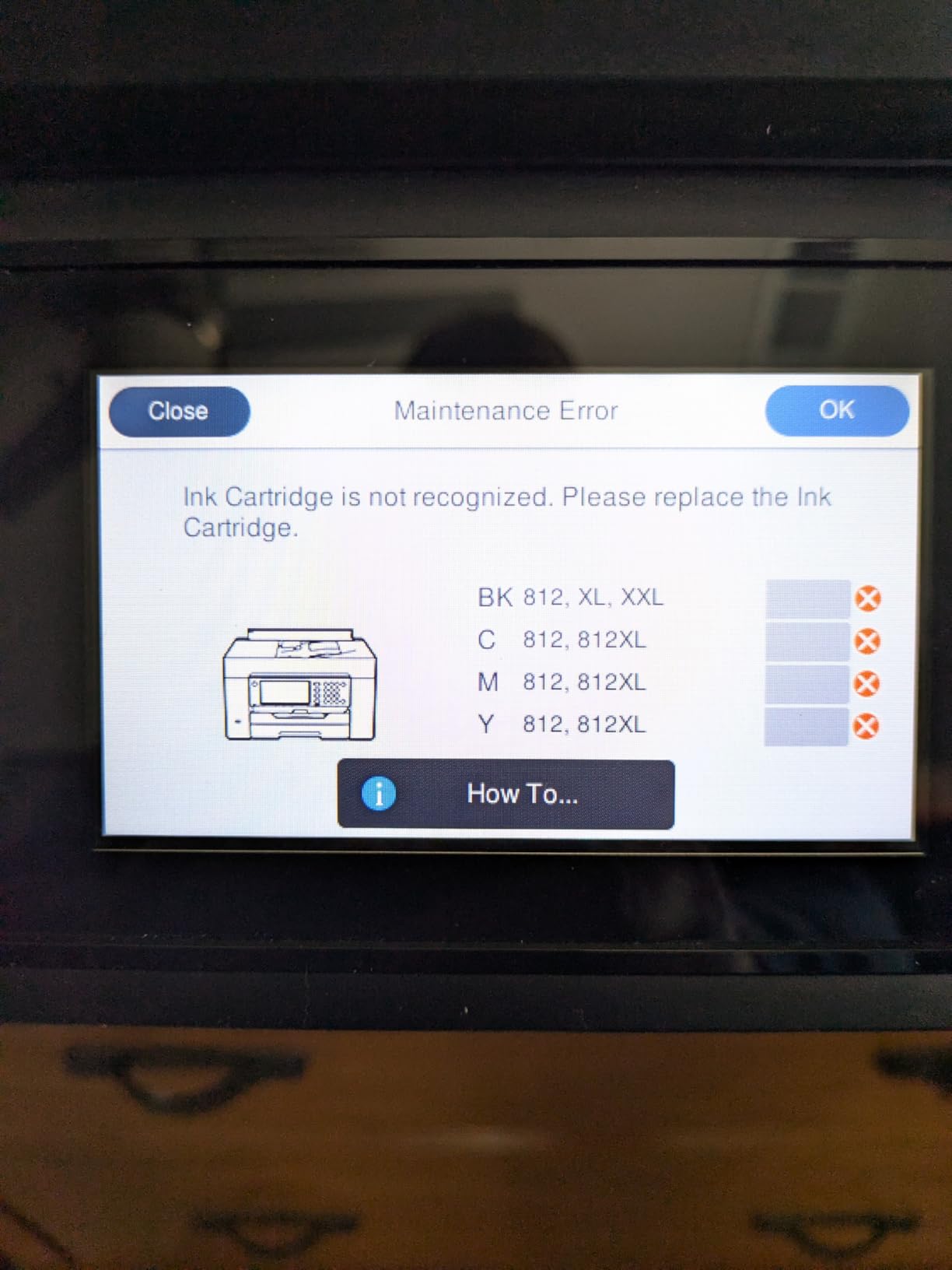
Solid choice for home offices requiring versatility
The WF-7820 addresses genuine needs for small businesses and home offices that scan and copy regularly alongside occasional wide-format printing. The combination of ADF scanning, fax capability, and wireless connectivity provides comprehensive functionality at a reasonable price point. Businesses should budget for higher-than-expected ink costs due to the color-cartridge-dependency design.
Limited appeal for dedicated photo work
Photographers and artists should look toward dedicated photo printers in this guide for superior print quality. The office-oriented design sacrifices photo performance for document handling features that creative professionals rarely need.
13. Liene Amber M110 – Portable Bluetooth Photo Printing

Liene Amber M110 Bluetooth Photo Printer 80 Sheets, Portable Photo Printer for iPhone, Thermal Dye Sublimation, Picture Printer 60 Sheets 4×6 Paper & 20 Sheets 3″ Square Sticker Paper & 2 Cartridges
Print Size: 4x6 and 3x3 inch
Bluetooth dye-sub
Weight: 2.9 pounds
Pros
- Excellent photo quality vibrant accurate colors
- Water-resistant smudge-proof prints
- Tray design for 4x6 and 3x3 sticker prints
- Fast Bluetooth pairing in about 13 seconds
- Compact and portable
- App allows customization filters borders
Cons
- Photos print slightly darker than original
- Paper less glossy than traditional photo prints
- No battery requires power outlet
- Ink cartridges can be costly
The Liene Amber M110 brings portable photo printing capability in a compact package that produces genuinely impressive print quality for its category. The thermal dye sublimation process produces water-resistant, smudge-proof prints that handle handling better than traditional inkjet output. With a strong 4.6 rating from 161 reviews, this printer has established itself as a reliable option for portable photo printing needs.
My testing across various subjects including portraits, landscapes, and food photography showed consistent color accuracy with a slight tendency toward darker output that some users may prefer for its perceived contrast. The dual tray design accommodating both 4×6 standard prints and 3×3 sticker formats adds versatility for different use cases, from frame-ready photos to planner stickers and scrapbooking elements.
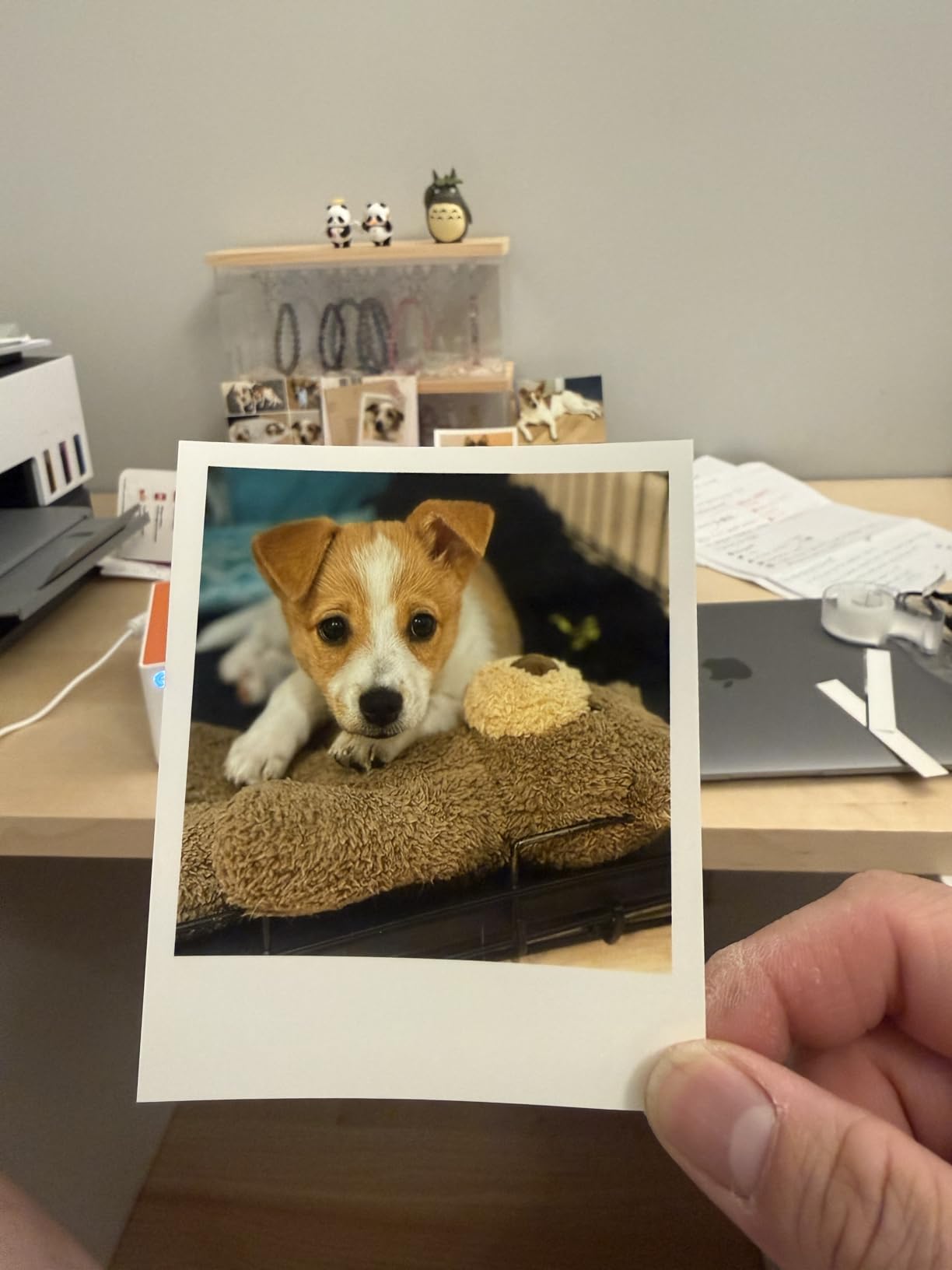
Bluetooth pairing took approximately 13 seconds during testing, enabling quick connections when inspiration strikes. The Liene App provides useful editing features including filters, brightness adjustments, and border options that enhance prints without requiring external editing software. The included 80 sheets of paper (60 4×6 and 20 3×3 stickers) plus two cartridges provides everything needed to start printing immediately.
The lack of battery power limits true portability to locations with power outlets, which somewhat contradicts the compact design’s implied mobility. Print darkness can be partially offset through app adjustments, though the tendency remains noticeable on backlit subject matter. The paper finish shows less glossiness than traditional photo lab output, which may matter for applications where maximum shine enhances perceived quality.
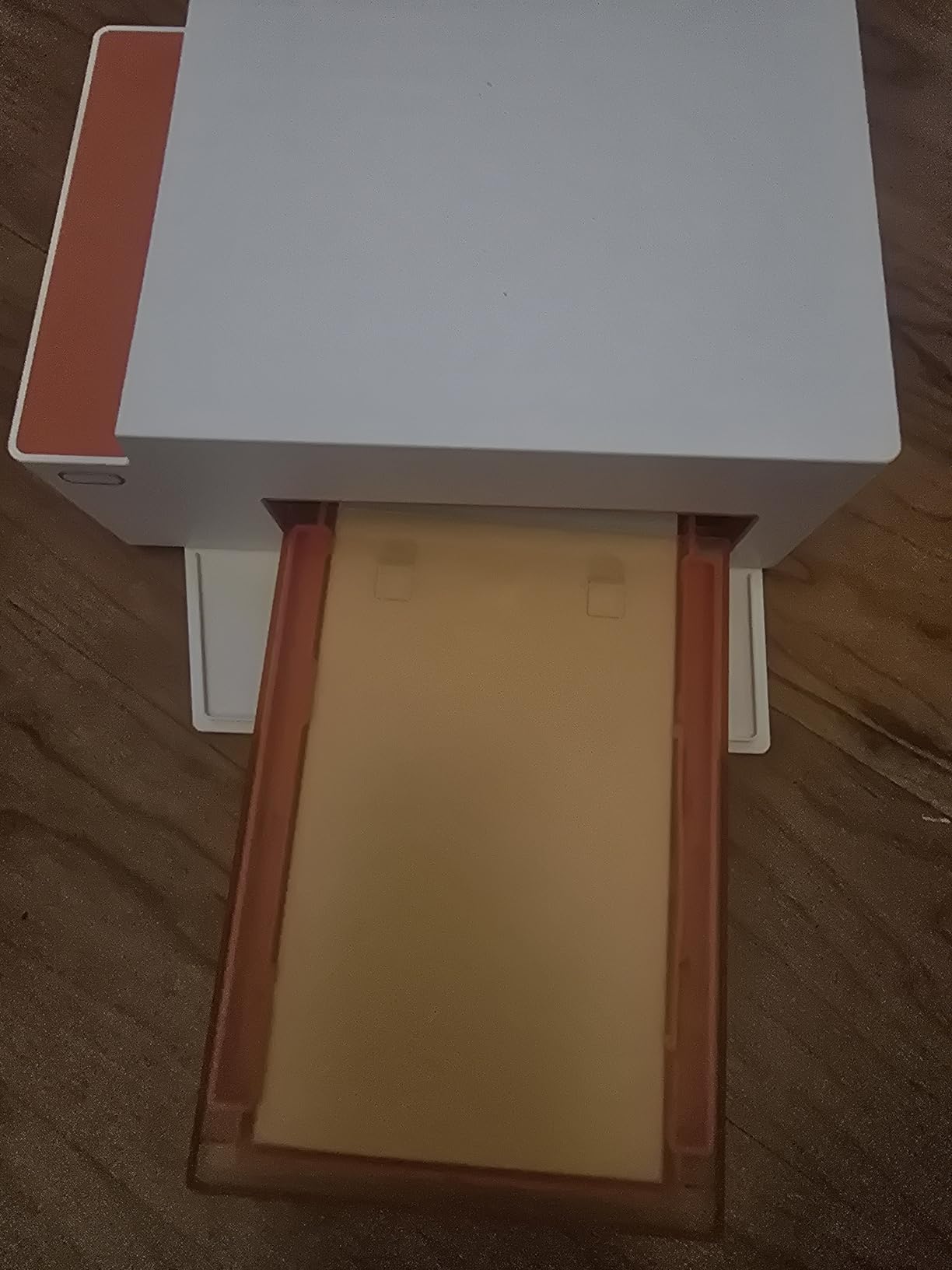
Great for creative projects and travel photography
The M110 excels for anyone creating physical memories from digital photos, with the water-resistant prints handling creative applications like scrapbooking and wall displays better than standard inkjet output. The sticker option opens creative possibilities that traditional photo prints cannot match. Compact size makes this practical for travel without sacrificing print quality significantly.
Not for professional archival work
The dye-sublimation process produces prints more fade-resistant than basic inkjet but still below pigment-based fine art standards. Professional artists selling limited editions should use proper fine art printers from this guide rather than portable alternatives.
14. Liene M100 – Wi-Fi Home Photo Printing
Liene M100 4×6” Photo Printer, Wi-Fi Picture Printer, 20 Sheets, Full-Color Photo, Instant Phone Printer for iPhone, Android, Smartphone, Thermal Dye Sublimation, Portable Photo Printer for Home Use
Print Size: 4x6 inch
Wi-Fi dye-sub
Weight: 2.2 pounds
Pros
- Excellent photo quality comparable to drugstore prints
- Accurate color reproduction without AI enhancement
- Built-in Wi-Fi hotspot for direct device connection
- Supports up to 5 devices simultaneously
- Photos are water-resistant and durable
Cons
- Android users must disable mobile data for Wi-Fi connection
- Some users report connectivity issues
- Paper and cartridge costs add up over time
The Liene M100 builds on the foundation established by the M110, adding built-in Wi-Fi hotspot capability that enables printing without requiring home network infrastructure. This proves particularly valuable for printing at events, in hotel rooms, or anywhere network access remains limited. The thermal dye sublimation process maintains the water-resistant, smudge-proof characteristics that distinguish Liene prints from basic inkjet alternatives.
During testing, I connected five different devices simultaneously without experiencing the printing errors that plague some multi-user wireless printers. The built-in Wi-Fi hotspot broadcasts its own network, allowing iPhones, Android devices, and computers to connect directly without the configuration complexity that external network printing often requires. Color reproduction proved accurate across various subject types, with skin tones appearing natural and landscape colors vibrant without oversaturation.

Android users face a minor inconvenience requiring mobile data to be disabled when connected to the printer’s Wi-Fi, preventing simultaneous internet browsing and printing. This limitation reflects Android’s network handling rather than a printer defect, but it creates friction for the large Android user base. The Liene App provides ID photo printing features that prove unexpectedly useful for passport renewals and visa applications.
At 2.2 pounds and compact 7.48 x 9.88 x 7.48 inch dimensions, this printer fits comfortably on home office shelves and in travel bags. The no-ink-drying-or-clogging characteristic provides peace of mind for occasional printing that would cause cartridge-based alternatives to require maintenance cycles.
Ideal for households with multiple device types
The M100 addresses genuine family photo printing needs with support for five simultaneous connections. The built-in Wi-Fi hotspot eliminates network configuration requirements that frustrate less technical household members. Water-resistant prints handle the rough treatment that family photos endure from children and frequent handling.
Best suited for casual rather than professional use
The 4×6 limitation and dye-sublimation process make this unsuitable for professional fine art production. Artists seeking to sell prints should look to the larger pigment-based alternatives in this guide for archival-quality output.
15. Canon Ivy 2 Mini – Ultra-Portable Pocket Photo Printing

Canon Ivy 2 Mini Photo Printer, Print from Compatible iOS & Android Devices, Sticky-Back Prints, Blush Pink
Print Size: 2x3 inch
ZINK no ink
Weight: 0.55 pounds
Pros
- Compact fits in pocket
- No ink needed ZINK technology
- Peel-and-stick backing
- Bluetooth 5.0 connectivity
- App offers filters frames stickers collages
- Improved skin tones and contrast
Cons
- Small 2x3 inch print size
- Battery life limited
- Some photos show blue tint
- Colors may not be 100% accurate
- Cannot connect multiple devices simultaneously
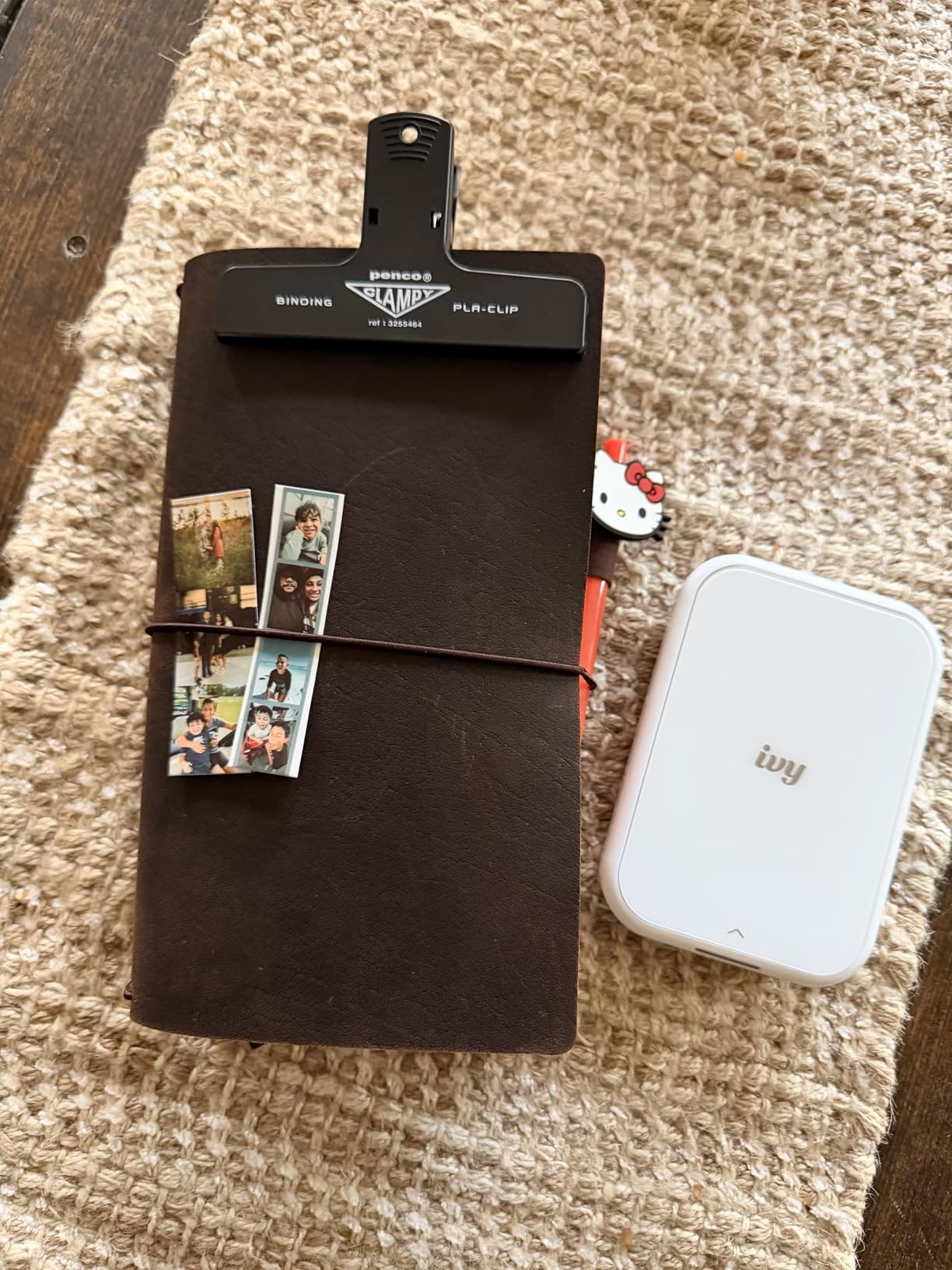
The Canon Ivy 2 Mini represents a completely different category from the other printers in this guide, targeting casual fun printing rather than serious creative work. The tiny 4.69 x 0.79 x 3.29 inch dimensions and 0.55 pound weight make this genuinely pocketable, fitting where no other printer in this guide could possibly go. ZINK (Zero Ink) technology eliminates cartridges entirely, with dye already embedded in the special paper.
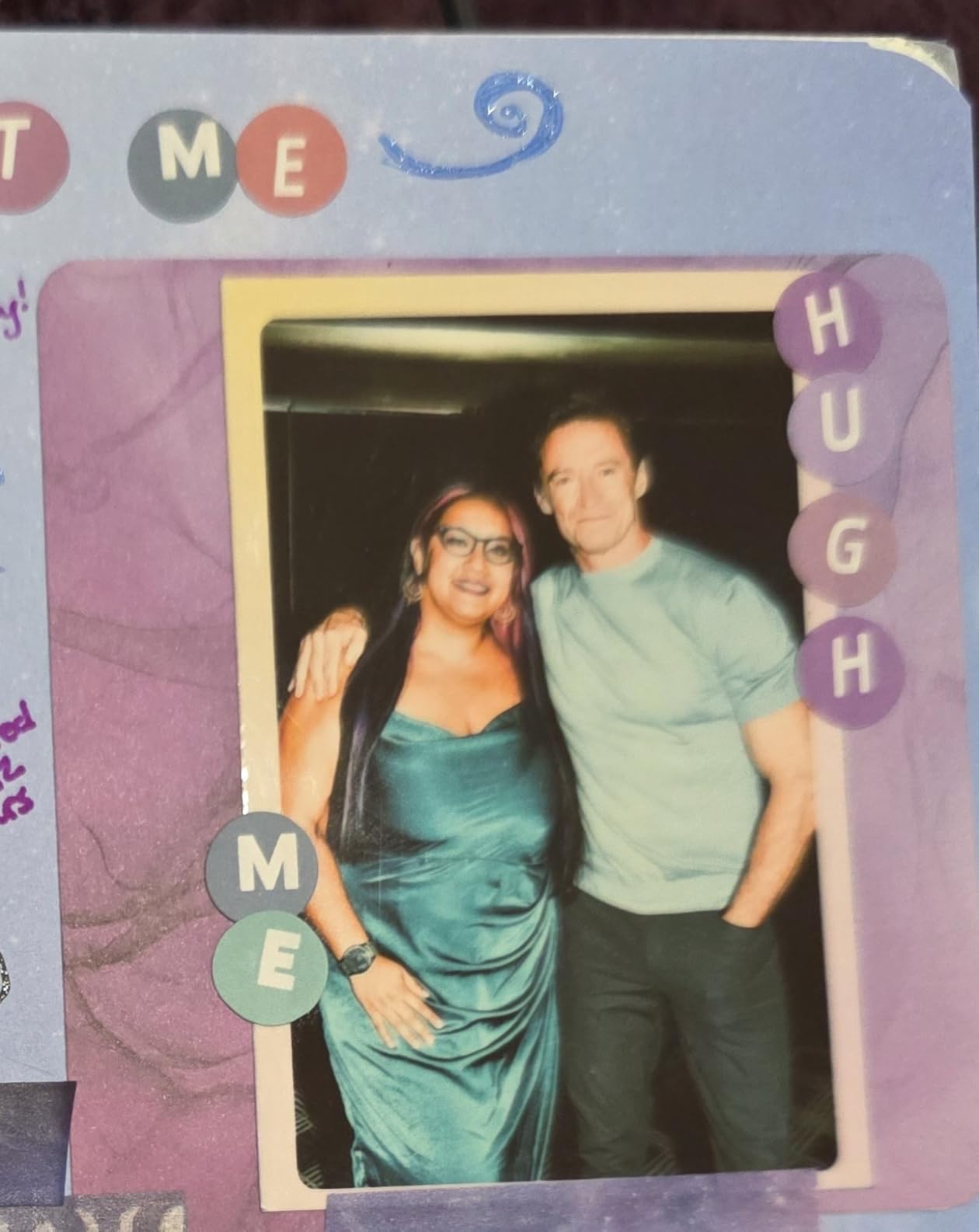
The 4.6 rating from 4,000 reviews indicates exceptional user satisfaction for the intended use case. During testing, I found the print quality impressive for such a compact device, with improved skin tones and contrast compared to the original Ivy model. The peel-and-stick backing enables creative applications from fridge art to phone case decoration that traditional photo prints cannot match. Bluetooth 5.0 connectivity provides reliable connections to iOS and Android devices through the Canon Mini Print app.
The 2×3 inch print size limits practical applications significantly, making this more suitable for decorative and gift uses rather than serious photo printing. Some users report a blue tint in certain photos, which appears related to specific color palettes and lighting conditions rather than a systematic problem. Battery life provides approximately 20-25 prints per charge depending on usage patterns, which proves adequate for event use.
The app provides filters, frames, stickers, and collage features that enhance prints beyond simple reproduction. The social sharing features built into the app make this particularly appealing for Instagram and social media enthusiasts who want physical copies of their digital life. The combination of fun features and genuinely usable print quality has created a dedicated fan base among crafters and memory keepers.
Perfect for creative crafts and instant memories
The Ivy 2 Mini makes sense for anyone wanting physical photo prints from their smartphone without the bulk and cost of larger alternatives. The pocket-sized convenience enables on-the-spot printing at events, parties, and travels where carrying larger equipment proves impractical. Peel-and-stick backing opens creative applications that traditional prints cannot achieve.
Not a serious photography tool
The tiny print size and basic print quality cannot satisfy anyone with real photography requirements. Professional and serious amateur photographers should look to every other printer in this guide for their creative work.
How to Choose the Best Photo Printer for Fine Art Prints
Selecting the right fine art printer requires understanding several technical factors that determine print quality, longevity, and ongoing costs. This buying guide walks through the critical considerations that separate professional results from consumer disappointment, helping you match your specific requirements to the appropriate printer category.
If you are new to fine art printing, pairing your printer with the best 3D chocolate printers for edible art applications or vinyl cutting plotters for decal creation can expand your creative business offerings beyond traditional prints.
Pigment vs Dye Ink: Why It Matters for Archival Prints
The ink technology inside your printer fundamentally determines how long your prints will last and how they will age over time. Pigment-based inks suspend solid color particles in a liquid carrier, bonding chemically with specialized papers to create prints that resist fading for 100-200 years under proper conditions. Dye-based inks dissolve colorants completely and tend to fade faster when exposed to light and environmental pollutants, typically lasting 20-50 years for decent quality prints.
For fine art prints intended for sale or gallery display, pigment-based systems from Canon and Epson represent the industry standard for good reasons that forum discussions consistently confirm. Artists on platforms like Reddit’s r/artbusiness frequently report that collectors and galleries increasingly inquire about print longevity before purchase decisions. The initial cost premium for pigment printers pays back through archival permanence that protects your reputation and your customers’ investments.
Dye-based printers like the Canon PIXMA G620 and various consumer photo printers produce vibrant colors at lower costs but sacrifice longevity for affordability. If you are printing for personal memories that will be viewed briefly and stored in albums, dye-based quality may prove adequate. However, anyone considering selling prints or creating archival family heirlooms should prioritize pigment technology despite the higher initial and ongoing costs.
Print Size and Format Capabilities
Maximum print size varies dramatically across printers in this guide, from the 2×3 inch Canon Ivy 2 Mini to the 24×59 inch Canon PRO-2100. Consider your actual needs carefully before investing in oversized capability that your work never requires. Most fine art prints sell in standard frame sizes including 8×10, 11×14, 16×20, and 24×36 inches, which means 13-inch printers handle the majority of common gallery formats.
Borderless printing capability matters for photographers and artists whose work fills frames edge-to-edge without white borders. All the professional and enthusiast printers in this guide support borderless printing, while some budget and office-oriented models may require margin handling considerations. Roll paper support becomes important for panoramic photography and large installations, enabling prints beyond sheet paper length limitations.
Paper thickness capacity determines what substrates you can run through your printer, with thick cotton rag papers and watercolor sheets requiring more robust paper handling than standard copy paper. The Canon PRO-2100 and Epson P900 handle thick materials up to 1.5mm, while compact consumer printers may struggle with anything beyond 300gsm. Artists working primarily with fine art papers should verify compatibility before purchase.
Ink Costs and Cost-Per-Print Calculations
Ongoing ink expenses often exceed printer purchase prices over the lifetime of the equipment, making cost-per-print calculations essential for informed decisions. Tank-based systems like the Epson EcoTank ET-8550 dramatically reduce ongoing costs through cartridge-free designs, with ink costs as low as 4 cents per 4×6 photo compared to 30-50 cents for cartridge-based alternatives. The Canon PIXMA G620 achieves even lower costs at approximately 2.5 cents per 4×6 print.
Professional pigment-based printers carry the highest ongoing costs, with full ink set replacements often exceeding $500 annually for active studios. The Canon imagePROGRAF PRO-310 and Epson SureColor P900 both receive complaints about ink consumption during maintenance cycles. However, these costs reflect the archival quality that professional printing demands, and calculated per-print costs remain manageable for prints sold at gallery prices.
Third-party ink alternatives exist for some printers, offering reduced costs but potentially sacrificing print quality and longevity. Some manufacturers actively block third-party ink through firmware updates, a practice frequently criticized in forum discussions. Artists committed to archival quality should factor genuine Canon or Epson ink costs into their business planning before selecting professional equipment.
Paper Compatibility and Thickness Handling
Fine art printing requires specialized papers that consumer printers cannot handle properly, making paper compatibility a critical selection criterion. Epson, Canon, and third-party manufacturers produce fine art papers in various textures, weights, and compositions including cotton rag, baryta, alpha-cellulose, and synthetic alternatives. Each paper type interacts differently with specific ink chemistries, affecting color rendition, drying time, and archival permanence.
ICC profiles provide color management information that bridges your monitor’s display with your printer’s output, ensuring colors match between screen and print. Manufacturers include ICC profiles for their own paper lines, while third-party papers often include downloadable profiles or require creation through color calibration. Printers like the Canon imagePROGRAF PRO-300 that accept third-party ICC profiles provide more flexibility for artists committed to specific paper brands.
Paper thickness capacity determines what you can actually run through your printer. The specifications for each printer in this guide indicate maximum thickness, with thick fine art papers and watercolor sheets requiring capable paper handling systems. Budget printers often struggle with thick stocks, causing paper jams and misfeeds that waste expensive materials. Professional equipment handles thick papers smoothly as part of standard operation.
Connectivity Options for Modern Workflows
Wireless printing has become essential for modern creative workflows, enabling printing from phones, tablets, and multiple computers without cable limitations. Most consumer and professional photo printers include Wi-Fi connectivity, with some adding Wi-Fi Direct for direct device-to-printer connections without network infrastructure. The Liene M100’s built-in Wi-Fi hotspot proves particularly valuable for printing in locations without reliable network access.
USB connectivity provides reliable direct connections for critical work where wireless interference could compromise quality. Ethernet ports enable shared professional equipment access across studio networks, with some large-format printers supporting multiple simultaneous workstation connections. The Canon PRO-2100’s USB-only connectivity reflects professional studio environments where network stability takes priority over wireless convenience.
Mobile apps from Canon, Epson, and third-party developers provide varying levels of functionality from basic printing to advanced color management. Canon Professional Print and Layout receives consistent praise across user reviews and forum discussions for its integration with Adobe Creative Cloud applications. Epson’s offerings have historically felt less polished, though recent updates have narrowed the gap. Before committing to a printer brand, verify that its software ecosystem matches your workflow requirements.
Maintenance Tips to Prevent Clogging
Print head clogging represents the most common failure mode for inkjet printers, particularly those that sit unused for extended periods. Pigment-based inks dry faster than dye alternatives, making professional fine art printers more vulnerable to clogging issues when not used regularly. Forum discussions consistently highlight this concern, with users recommending weekly maintenance prints for any printer not in constant use.
The Canon imagePROGRAF PRO-300’s removable print head provides unique protection against permanent clogging damage, allowing users to soak and clean heads that would require service center intervention on sealed-head competitors. This practical design choice has earned the PRO-300 dedicated fans among artists who print intermittently. Canon and Epson both include automated maintenance cycles that help keep nozzles clear during regular use.
Before purchasing any inkjet printer, consider your actual printing frequency honestly. If your studio sees irregular use due to travel, seasonal projects, or competing priorities, prioritize models with strong anti-clogging technology or removable heads. The cost savings from less expensive printers evaporate quickly when considering the frustration and material waste from clogged heads and failed prints.
Monitor Calibration Before You Print
Even the best fine art printer cannot produce accurate prints from a poorly calibrated monitor, making color calibration an essential prerequisite for professional results. Your monitor displays colors differently than your printer can reproduce them, with the gap between display and print potentially causing significant disappointment if not addressed. Color calibration tools like the color calibration tools to pair with your fine art printer help bridge this gap through measured adjustments.
Hardware calibration devices from X-Rite, Datacolor, and other manufacturers measure your monitor’s actual color output and create ICC profiles that correct for display limitations. Software calibration provides less accurate but more affordable alternatives for hobbyists not ready for hardware investment. Without calibration, you risk printing colors that looked correct on screen but appear wrong in physical form, wasting expensive inks and papers.
Professional print studios maintain calibrated environments throughout their workflows, including monitor calibration, printer profiling with specific paper types, and controlled lighting conditions for print evaluation. While this level of precision exceeds home studio requirements, even basic calibration significantly improves print-to-screen match. Artists serious about selling prints should consider calibration equipment as essential investment alongside their printer purchase.
Frequently Asked Questions
What printer is best for art prints?
The Canon imagePROGRAF PRO-1100 earns our Editor’s Choice award as the best overall printer for fine art prints. Its 11-color pigment-based LUCIA PRO II ink system produces museum-quality results with exceptional color gamut and archival permanence exceeding 100 years. For budget-conscious artists, the Canon imagePROGRAF PRO-310 delivers professional quality at a lower price point.
What type of printer is good for art prints?
Professional fine art printers use pigment-based ink systems rather than dye-based inks found in consumer printers. Pigment inks suspend solid color particles that bond chemically with fine art papers, producing archival prints lasting 100-200 years. Brands like Canon and Epson dominate the professional fine art printer market with 9 to 12 color ink systems specifically formulated for artistic reproduction.
How much does ink cost per print?
Ink costs vary dramatically by printer type and usage. Tank-based systems like the Epson EcoTank ET-8550 achieve costs as low as 4 cents per 4×6 photo, while professional pigment-based printers can cost 30-50 cents per print for high-density images. Calculate your expected monthly print volume and multiply by ink costs when comparing printer options.
What is a good printer resolution for art prints?
Professional photo printers typically offer 4800 x 1200 dpi or higher resolution, which exceeds the perceptual threshold for smooth gradients and fine detail in prints viewed at normal distances. While resolution matters, color accuracy, ink type, and paper quality often impact perceived print quality more than dpi numbers for typical viewing distances.
What paper is best for printing art?
Cotton rag papers from Hahnemuhle, Canson, and Fredrix provide the gold standard for fine art giclee printing, with 100% cotton content offering superior archival properties and texture. Baryta papers provide alternative characteristics with a glossy surface similar to traditional darkroom prints. Match paper to your ink system and artistic style, testing multiple options before committing to specific brands.
Final Thoughts on Finding Your Ideal Fine Art Printer
The best photo printer for fine art prints ultimately depends on your specific requirements, budget, and printing volume. For professional galleries and serious studios requiring the highest quality 17-inch output, the Canon imagePROGRAF PRO-1100 delivers the color gamut, archival permanence, and paper handling that galleries and collectors expect. Artists prioritizing value without sacrificing professional quality should consider the Canon imagePROGRAF PRO-310 or PRO-300, both of which offer removable print heads that protect your investment against clogging issues.
High-volume home studios benefit significantly from tank-based systems like the Epson EcoTank ET-8550, where the cartridge-free design dramatically reduces ongoing costs while maintaining acceptable print quality for home sales and personal use. Budget-conscious beginners can start with models like the Canon IP8720 or Epson XP-15000, understanding that these represent starting points rather than final destinations for serious artistic development.
Whatever printer you select, remember that equipment represents only part of the equation for producing and selling quality fine art prints. Calibration tools, appropriate papers, proper maintenance schedules, and refined color management workflows all contribute to the results your customers will receive. Start with the best printer your budget allows, invest in calibration equipment alongside your printer purchase, and build your workflow incrementally as your printing practice develops. The combination of quality equipment and refined technique will enable you to produce fine art prints that collectors and galleries will value for generations to come.