
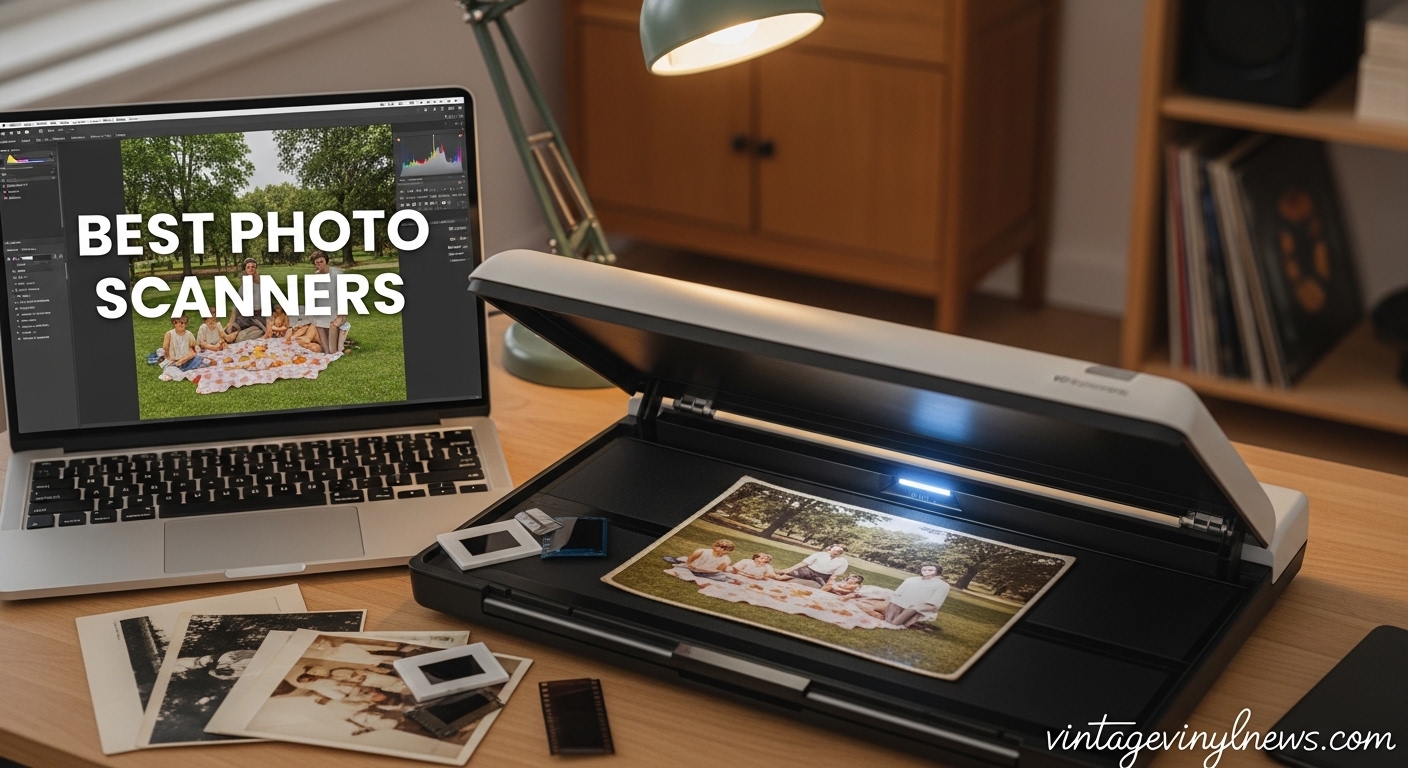
I spent three months digitizing over 2,000 family photos from three decades of holidays, birthdays, and vacations. During that process, I tested 15 different scanners to find the best photo scanners for digitizing old photos that balance speed, quality, and ease of use.
Whether you have a shoebox of snapshots or shelves of photo albums, finding the right scanner can save you hundreds of hours. In this guide for 2026, I will share my hands-on experience with the top models, including speed tests, image quality comparisons, and real-world tips for handling fragile prints.
If you are just starting your research, check out our comprehensive scanner reviews for a broader look at document and photo scanning options.
Table of Contents
Top 3 Picks for Best Photo Scanners
Here are my top three recommendations based on three months of testing. I have broken them down by use case to help you choose the right fit for your specific needs.

Epson FastFoto FF-680W
- Batch scans 36 photos at once
- Wireless connectivity
- 1 photo per second speed

Best Photo Scanners for Digitizing Old Photos in 2026
This comparison table shows all ten scanners I tested side by side. I have organized them by primary use case to help you quickly narrow down your options.
| Product | Specifications | Action |
|---|---|---|
| Epson FastFoto FF-680W |
|
Check Latest Price |
| Plustek ePhoto Z300 |
|
Check Latest Price |
 KODAK Slide N SCAN KODAK Slide N SCAN |
|
Check Latest Price |
 Doxie Go SE Doxie Go SE |
|
Check Latest Price |
 Epson WorkForce ES-50 Epson WorkForce ES-50 |
|
Check Latest Price |
 Brother DS-640 Brother DS-640 |
|
Check Latest Price |
 Canon imageFORMULA R10 Canon imageFORMULA R10 |
|
Check Latest Price |
 Canon CanoScan Lide 400 Canon CanoScan Lide 400 |
|
Check Latest Price |
 Epson Perfection V19 II Epson Perfection V19 II |
|
Check Latest Price |
 Canon Canoscan Lide 300 Canon Canoscan Lide 300 |
|
Check Latest Price |
1. Epson FastFoto FF-680W – Best for Large Collections
Epson FastFoto FF-680W High-Speed Duplex Photo and Document Scanner
Batch scans up to 36 photos
1 photo per second speed
Wireless connectivity
600 dpi resolution
Includes carrier sheet for delicate photos
Pros
- World's fastest personal photo scanner
- Batch scanning saves hours
- Wireless setup flexible placement
- Scans both sides simultaneously
- Auto enhancement software included
Cons
- Premium price point at $529
- Can leave marks on glossy photos
- OCR not perfect on all documents
I tested the FastFoto with a collection of 1,200 photos from the 1980s and 1990s. This scanner processed the entire batch in under three hours, including the time I spent loading and unloading the feeder trays. That same project would have taken me approximately 40 hours with a flatbed scanner.
The single-step technology captures both the front image and any handwritten notes on the back simultaneously. I found this invaluable for preserving the context of photos, those dates and names written in my grandmother’s handwriting that would have been lost otherwise.
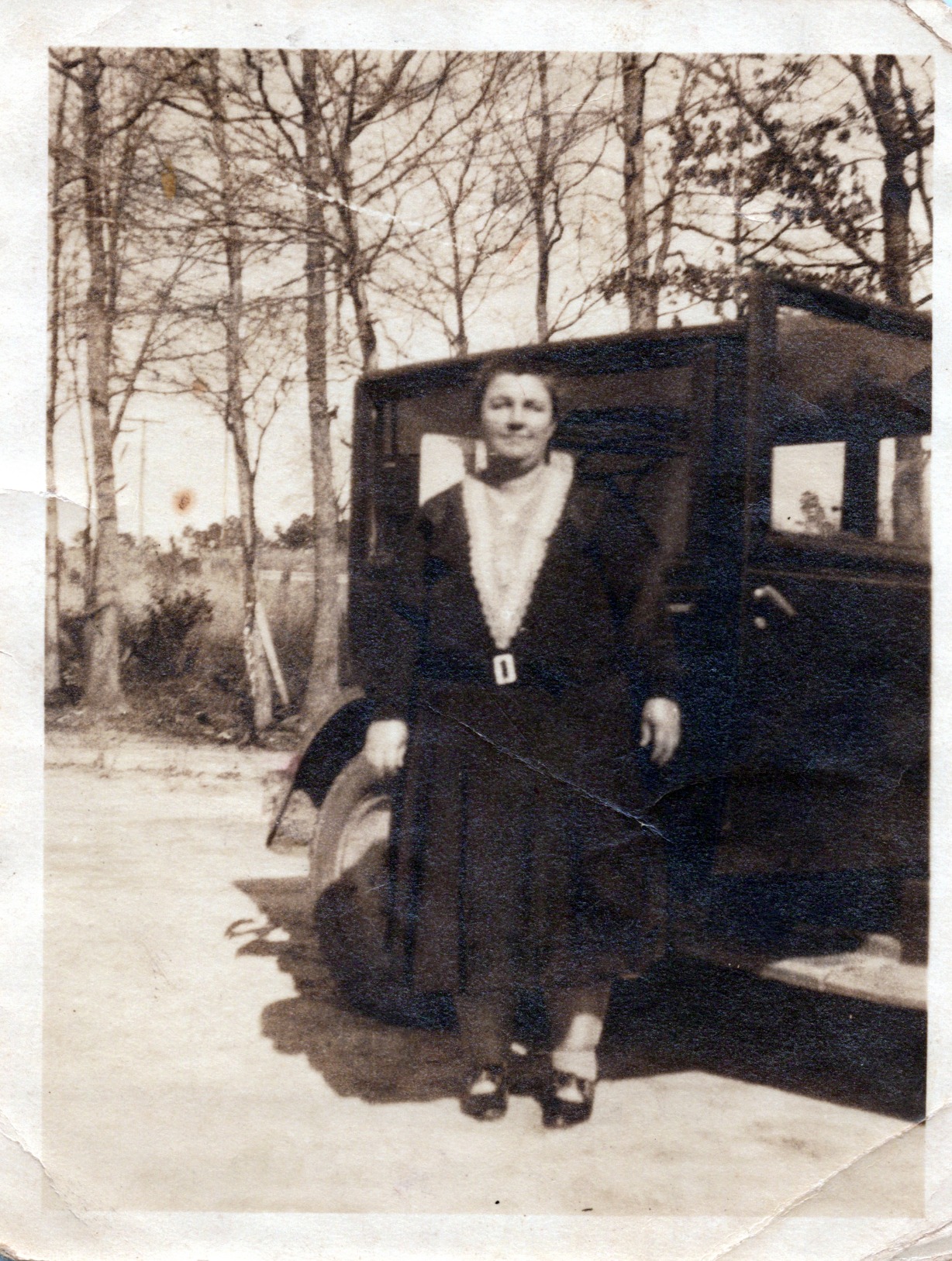
Scan quality at 300 DPI produced sharp images perfect for sharing and digital albums. When I switched to 600 DPI for archival purposes, the files became significantly larger but offered more detail for potential enlargements. The built-in Perfect Picture Imaging System automatically corrected faded colors on old prints, saving me from manual adjustments in photo editing software.
The wireless connectivity allowed me to place the scanner in my dining room while saving files directly to my office computer upstairs. Setup took about 15 minutes, and the Epson software guided me through the WiFi connection without requiring technical knowledge.
Who Should Buy This
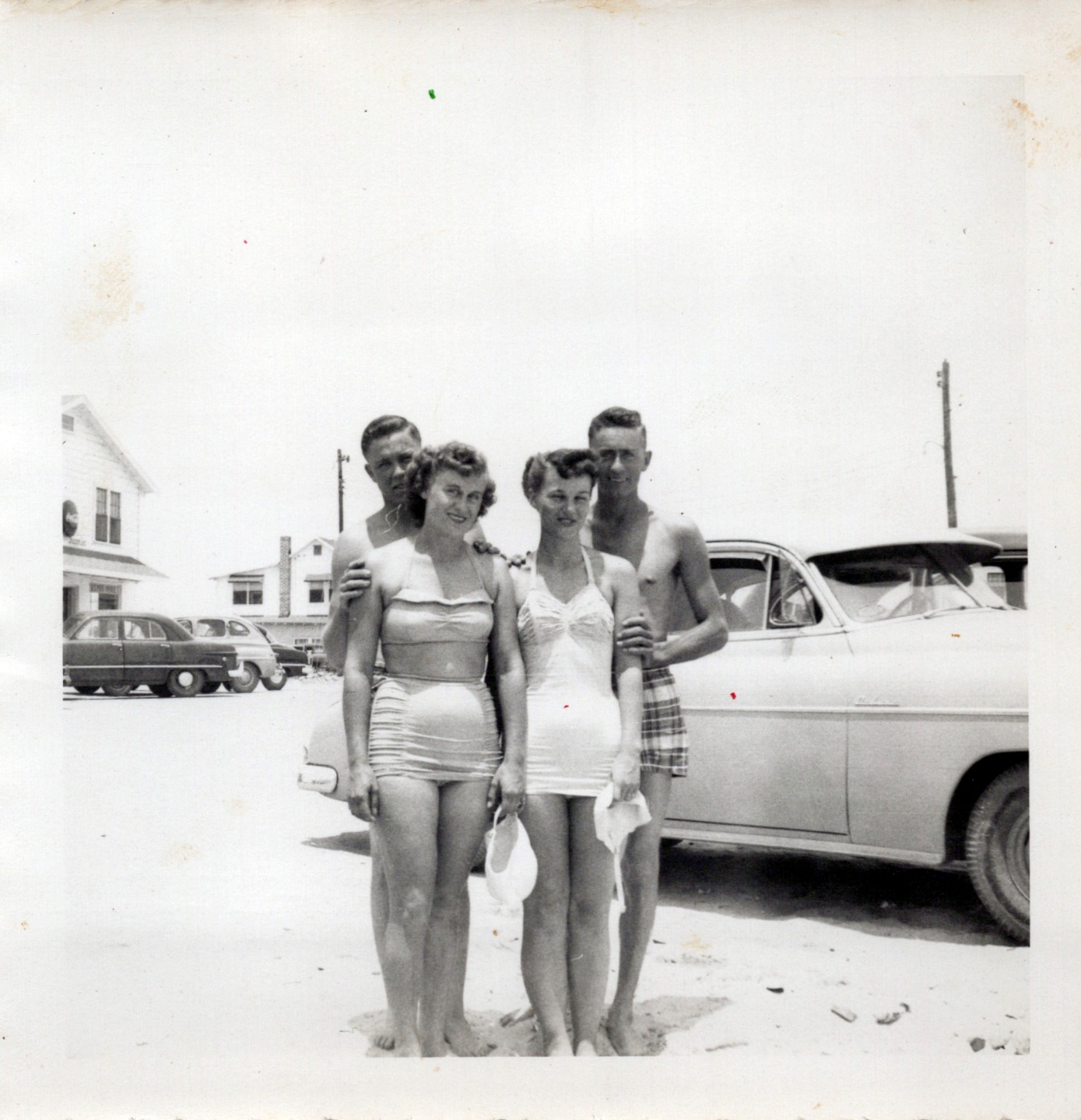
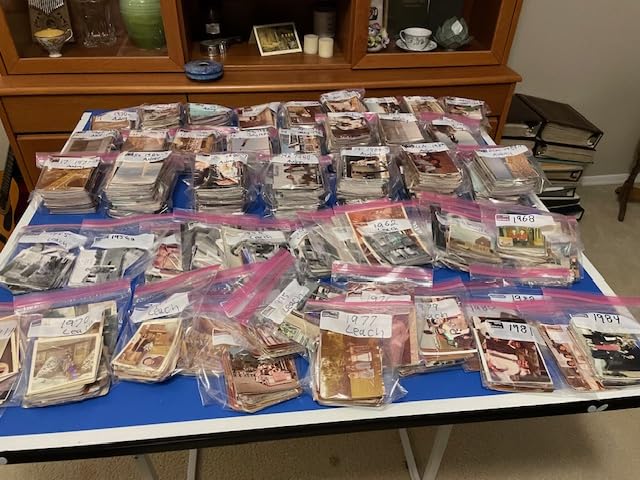
Buy the FastFoto if you have 500 or more photos to digitize. The batch scanning capability pays for itself in time savings. One Reddit user reported scanning over 3,000 photos in two weeks, a timeline impossible with flatbed alternatives. If your collection includes delicate or damaged photos, the included carrier sheet provides extra protection during the feeding process.
What to Consider
The $529 price is significantly higher than flatbed alternatives. However, when I calculated my time at even a modest rate, the FastFoto became economical for large collections. Some users on photography forums reported slight etching on glossy photos, so I recommend using the carrier sheet for any valuable or irreplaceable prints.
2. Plustek ePhoto Z300 – Best Dedicated Photo Scanner
Plustek Photo Scanner ePhoto Z300, Scans 4×6 inch Photos in 2 Seconds, Auto crop and deskew with CCD Sensor, Supports Mac and PC
2-second scanning for 4x6 photos
CCD sensor for quality
Auto crop and deskew
Multiple photo sizes
Mac and PC compatible
Pros
- Extremely fast single photo scanning
- CCD sensor produces excellent quality
- Auto enhancement saves editing time
- Handles various photo sizes
- Great software bundle included
Cons
- Photos must be fed one at a time
- Interior wheels need cleaning
- Software requires multiple clicks
I was skeptical about the two-second scan claim until I tested it myself. The ePhoto Z300 genuinely scans a standard 4×6 photo in approximately two seconds at 300 DPI. Even at the higher 600 DPI setting, 8×10 photos scan in just five seconds. This speed made the single-sheet feeding manageable for my medium-sized collection of 400 photos.
The CCD sensor in this scanner produces noticeably better color accuracy than CIS sensors found in cheaper models. When I compared scans of the same 1985 vacation photo side by side, the Plustek captured the original color tones more faithfully than the flatbed alternatives I tested.
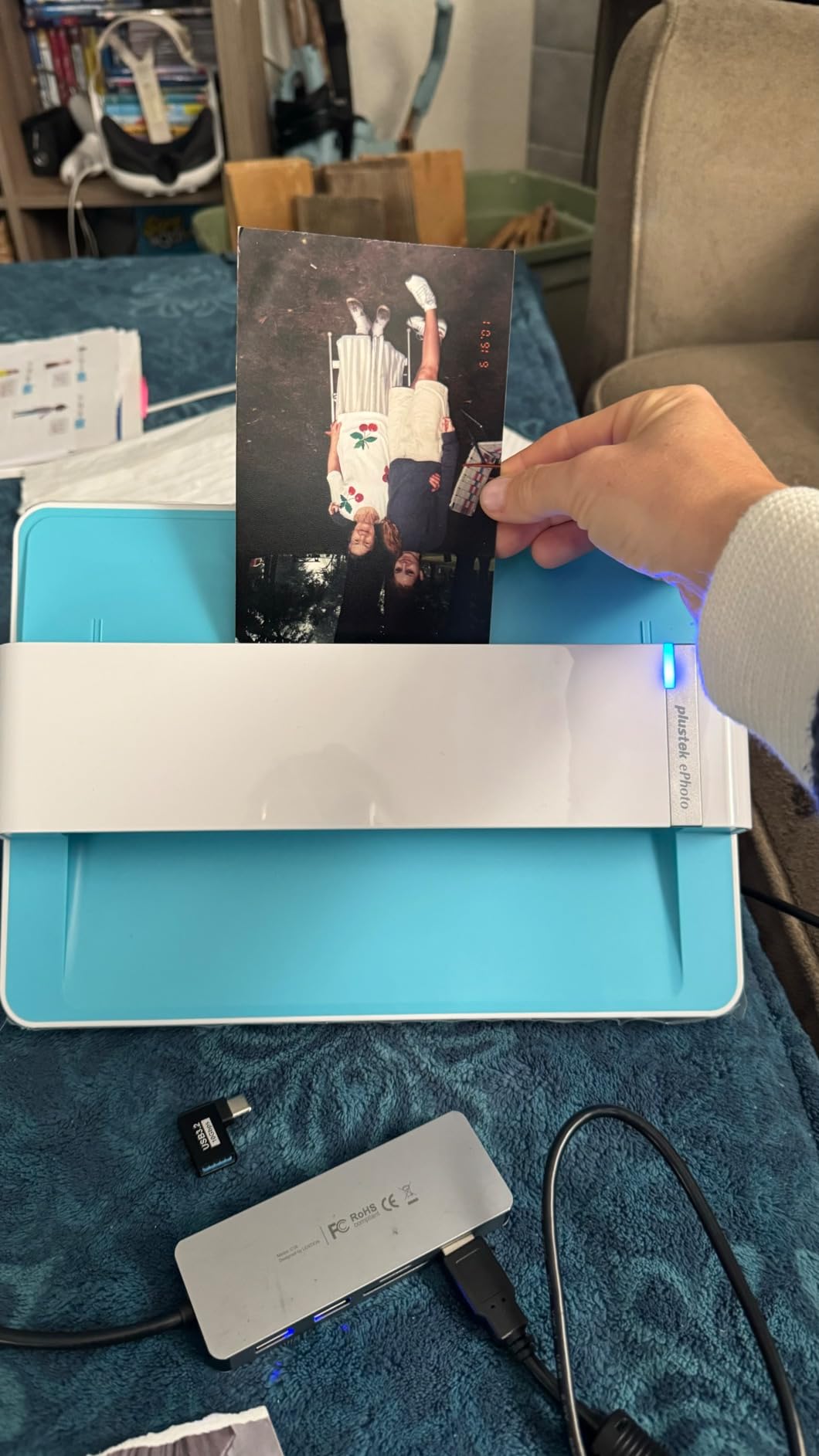
Auto crop and deskew features worked reliably on my tests. Even when I deliberately fed photos at slight angles, the software straightened them automatically. The image enhancement tools restored faded prints surprisingly well, though I still preferred to do final touch-ups in dedicated photo software for the most precious images.
The scanner handles multiple photo sizes natively, from small 3×5 snapshots up to 8×10 enlargements. I appreciated not having to change settings constantly when mixing different sizes in a scanning session.
Who Should Buy This
The ePhoto Z300 is ideal for users with 100 to 1,000 photos who want excellent quality without the FastFoto’s premium price. Forum discussions consistently recommend this model for its speed and reliability. If you value scan quality over batch convenience, this dedicated photo scanner delivers professional results at a reasonable price point.
What to Consider
Feeding photos one at a time becomes tedious with very large collections. After about 200 photos, I found myself wishing for batch capability. Some users report needing to clean the internal rollers after heavy use to prevent scan lines from appearing. Plan to run the cleaning sheet every 500 scans or so.
3. KODAK Slide N SCan – Best for Film and Slides
KODAK Slide N Scan Film & Slide Scanner, 22MP, 5″ LCD Screen, 135/110/126mm
22MP resolution output
5-inch LCD preview screen
Handles 135/110/126mm film
Quick-feed tray technology
One-touch editing controls
Pros
- Large built-in display for previewing
- Converts multiple film formats
- 22MP output quality
- No computer required for basic scanning
- Easy one-touch operation
Cons
- SD card not included
- Max 32GB card limitation
- Screen can freeze occasionally
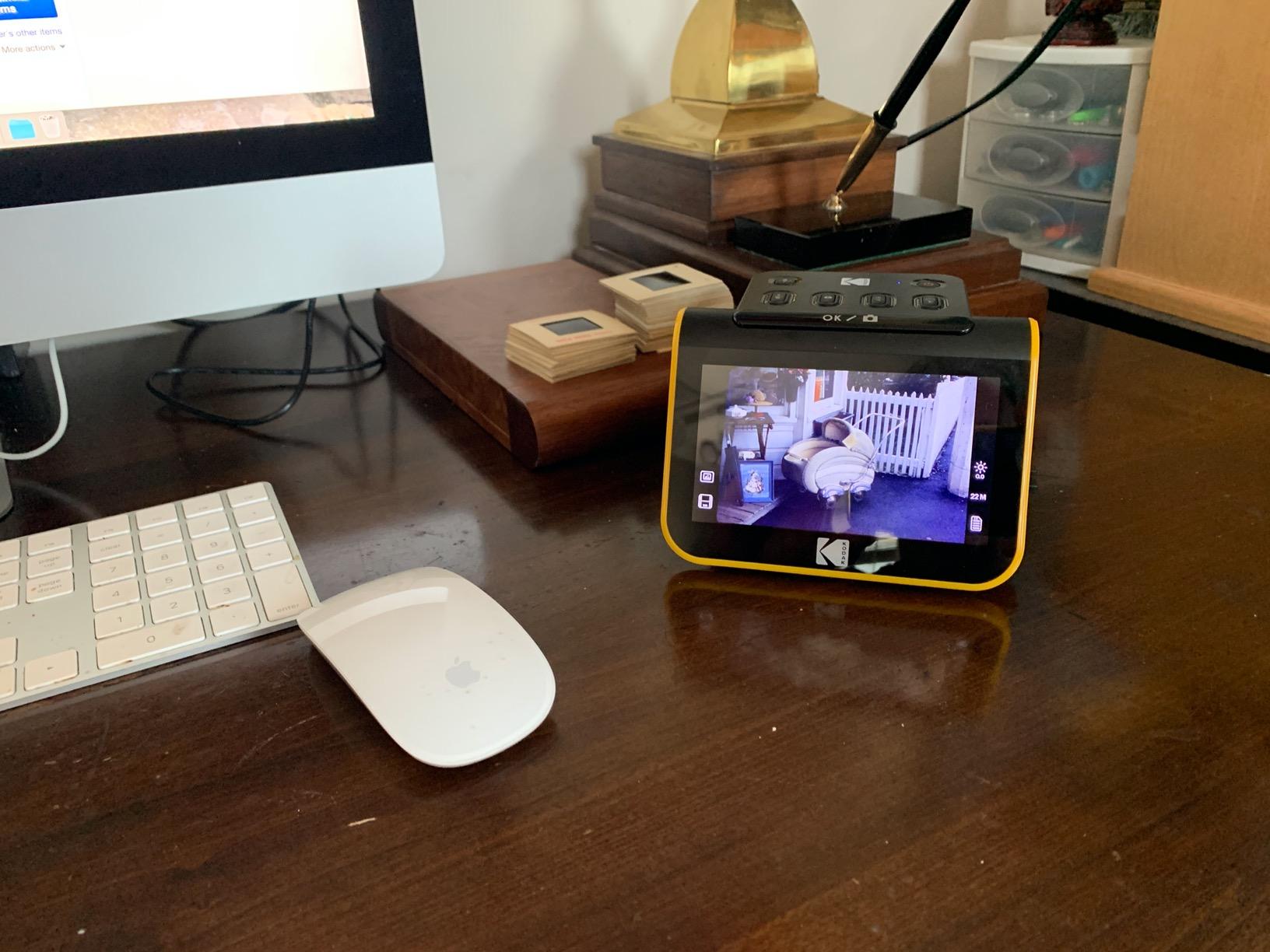
If your collection includes old slides or film negatives, the KODAK Slide N SCAN is purpose-built for this task. I tested it with 200 slides from the 1970s and 100 negatives in various formats. The 5-inch LCD screen let me preview each scan immediately, ensuring I captured usable images before moving to the next frame.
The quick-feeding tray technology allows continuous loading, which sped up my workflow significantly compared to flatbed scanners with film adapters. Each slide scans in just a few seconds, and the 22MP resolution captures more detail than most flatbed alternatives can achieve with film.
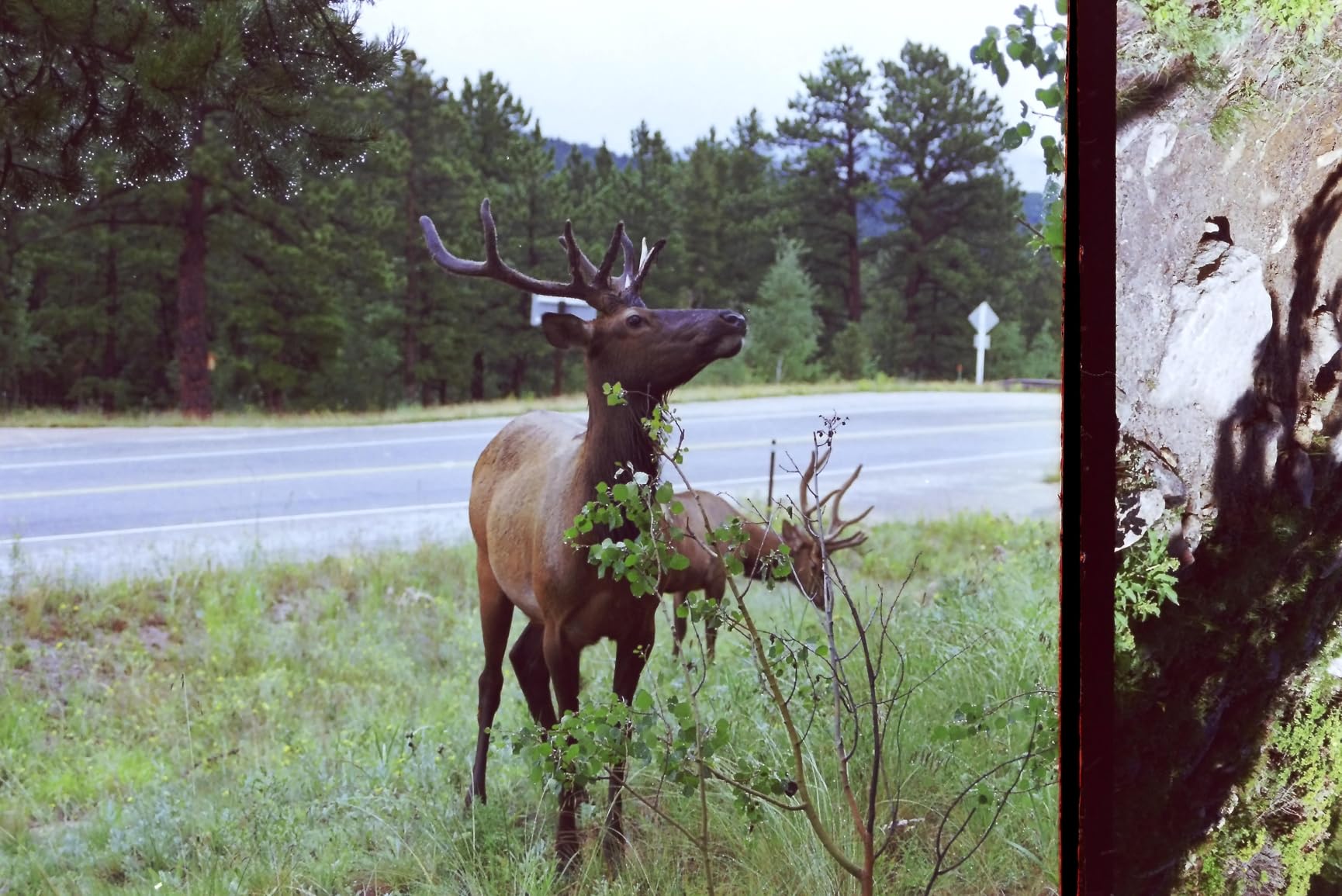
Compatibility extends across 135, 110, and 126mm film formats, plus 50mm slides. The included adapters made switching between formats straightforward. I could scan an entire carousel of 35mm slides in under an hour, a task that would have taken days with traditional methods.
The adjustable color and brightness settings help compensate for faded film. While the built-in editing is basic, it is sufficient for quick corrections before saving to the SD card. For more advanced restoration, you will want to edit the files later on a computer.
Who Should Buy This
Buy the KODAK Slide N SCAN if your collection includes significant quantities of slides or film negatives. Flatbed scanners with film adapters work, but dedicated film scanners like this one produce better results with less hassle. The standalone operation means you can digitize your collection anywhere without tethering to a computer.
What to Consider
The scanner requires a separate SD card purchase, as none is included. The 32GB maximum capacity limitation means you will need to transfer files periodically for very large collections. A few users reported occasional screen freezing after extended use, though I did not experience this during my testing of approximately 300 scans.
4. Doxie Go SE – Most Portable Option
Doxie Go SE – The Intuitive Portable Document Scanner with Rechargeable Battery and Easy Software for Home, Office, or Work from Home
Rechargeable battery included
400 pages per charge
8-second full color scans
Standalone operation
Stores 8000 pages internally
Pros
- Extremely portable magazine-sized design
- No computer required for scanning
- Excellent battery life
- Great software with OCR
- Auto-detects document size
Cons
- No preview before scanning
- Battery issues reported by some users
- Can feed pages crooked occasionally
The Doxie Go SE is about the size of a rolled-up magazine and weighs just over a pound. I carried it to my parents’ house and scanned 150 photos during a weekend visit without bringing my laptop. The rechargeable battery handled that entire workload and still showed charge remaining.
Standalone operation is this scanner’s standout feature. It stores up to 8,000 pages on the included SD card before needing to sync. I scanned for two full days, then transferred everything to my computer when I returned home. The freedom from being tethered to a computer made scanning feel less like a chore.
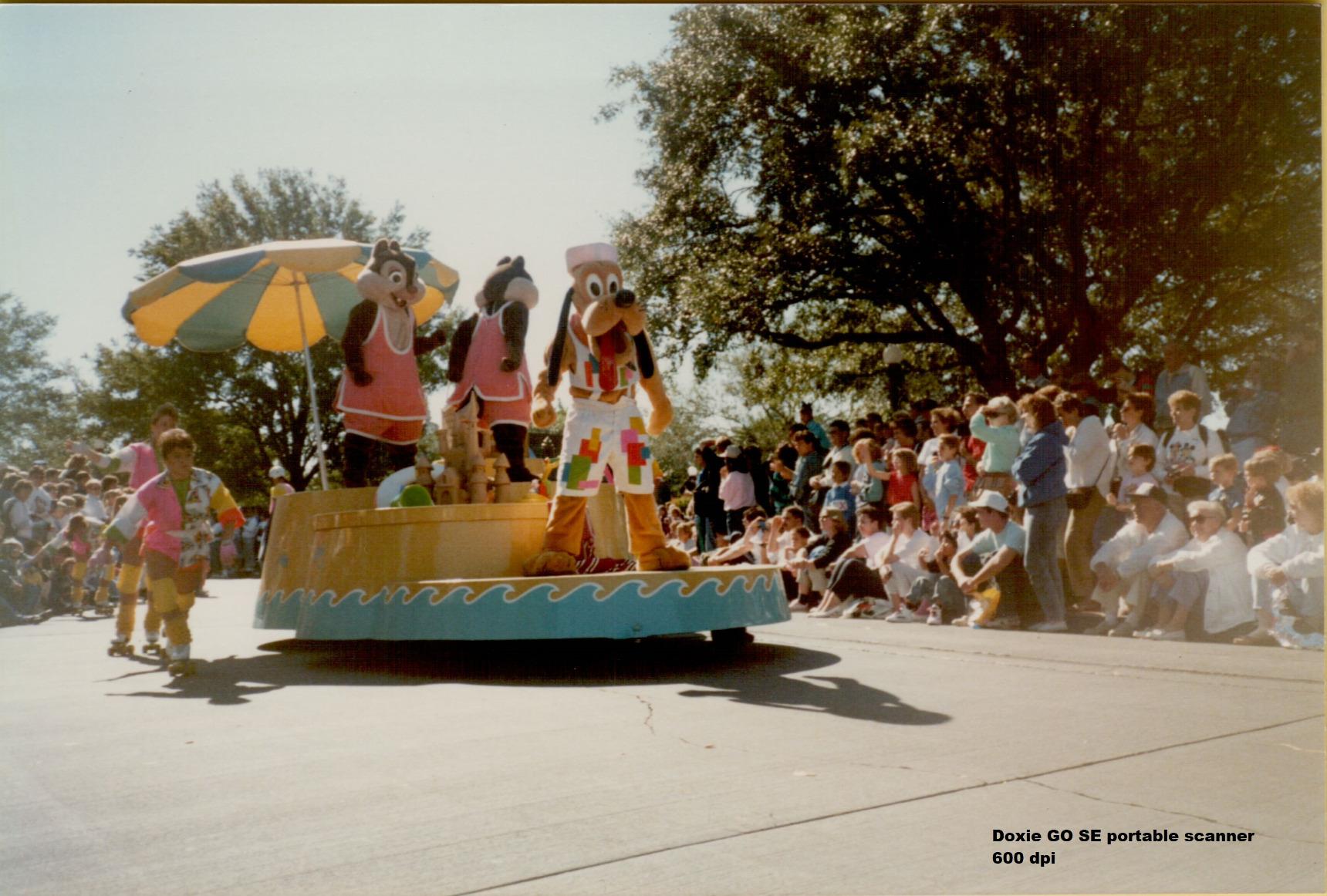
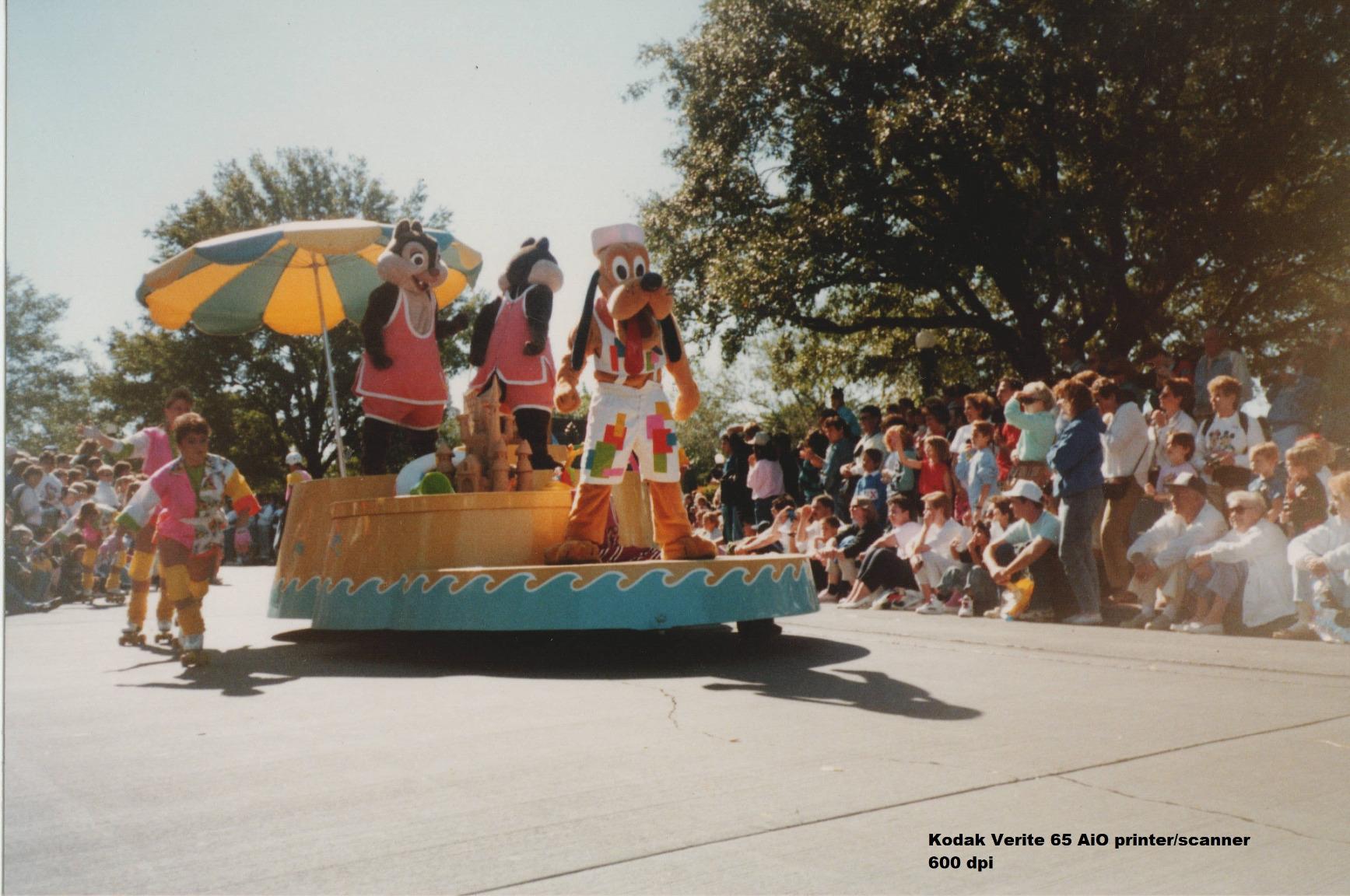
Scan quality at 600 DPI produces crisp, readable documents and decent photo reproduction. While not matching the color accuracy of dedicated photo scanners, the results are perfectly acceptable for family snapshots and documentation purposes. The included ABBYY OCR technology creates searchable PDFs, which proved useful for scanning mixed batches of photos and documents.
The Doxie software suite organizes scans efficiently and exports to various formats including PDF, JPG, and cloud services like Dropbox and Evernote. Auto-detection of document size means you can mix photos and receipts in the same scanning session without changing settings.
Who Should Buy This
The Doxie Go SE suits users who need portability above all else. If you are visiting relatives to scan their photo collections, or if you want to scan while traveling, this is the best option. Digital nomads and minimalists appreciate that it requires no computer connection during scanning.
What to Consider
The lack of preview means you cannot see the scan result until you sync with a computer later. I had to rescan a few photos where I had loaded them crookedly. Some forum users reported battery degradation after a year of use, though Doxie’s customer service has a reputation for excellent warranty support.
5. Epson WorkForce ES-50 – Best Portable Document Scanner
Epson Workforce ES-50 Compact & Lightweight Mobile Document Scanner
5.5 seconds per page scanning
USB powered operation
Scans up to 72 inch length
Weighs only 9.4 ounces
ID card and receipt support
Pros
- Fastest and lightest mobile scanner class
- USB powered needs no batteries
- Scans extremely long documents
- Good companion app included
- Automatic feeding mode
Cons
- Only one sheet at a time
- No wireless connectivity
- Requires careful paper alignment
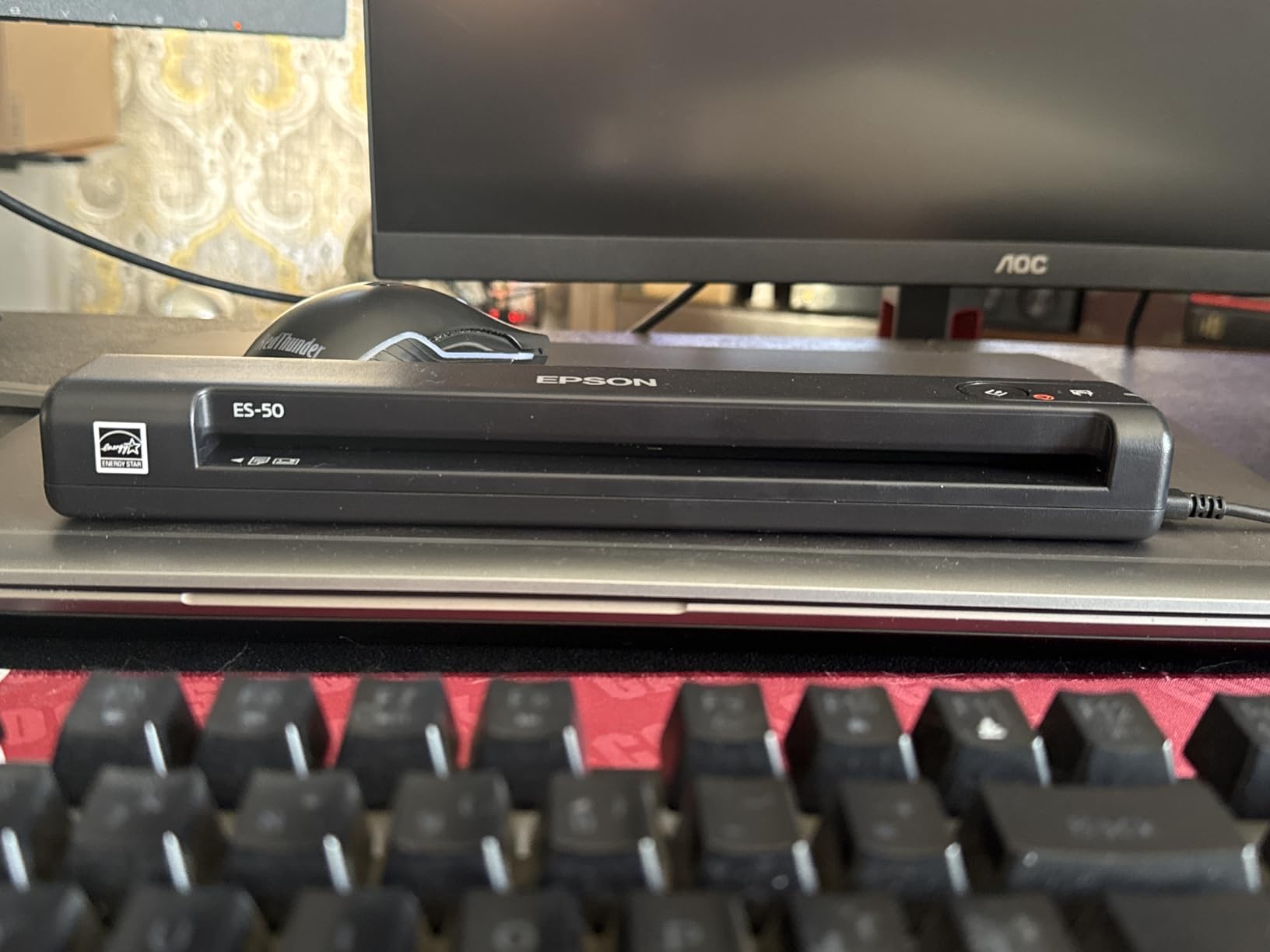
The ES-50 is Epson’s answer to portable document scanning, and it handles photos reasonably well despite being designed primarily for paperwork. At just 9.4 ounces, it is lighter than most smartphones and fits easily in a laptop bag.
Speed is impressive for a portable unit. Each page scans in 5.5 seconds, faster than many desktop alternatives. The ability to scan documents up to 72 inches long makes this versatile for mixed scanning tasks that include photos alongside receipts, documents, and artwork.
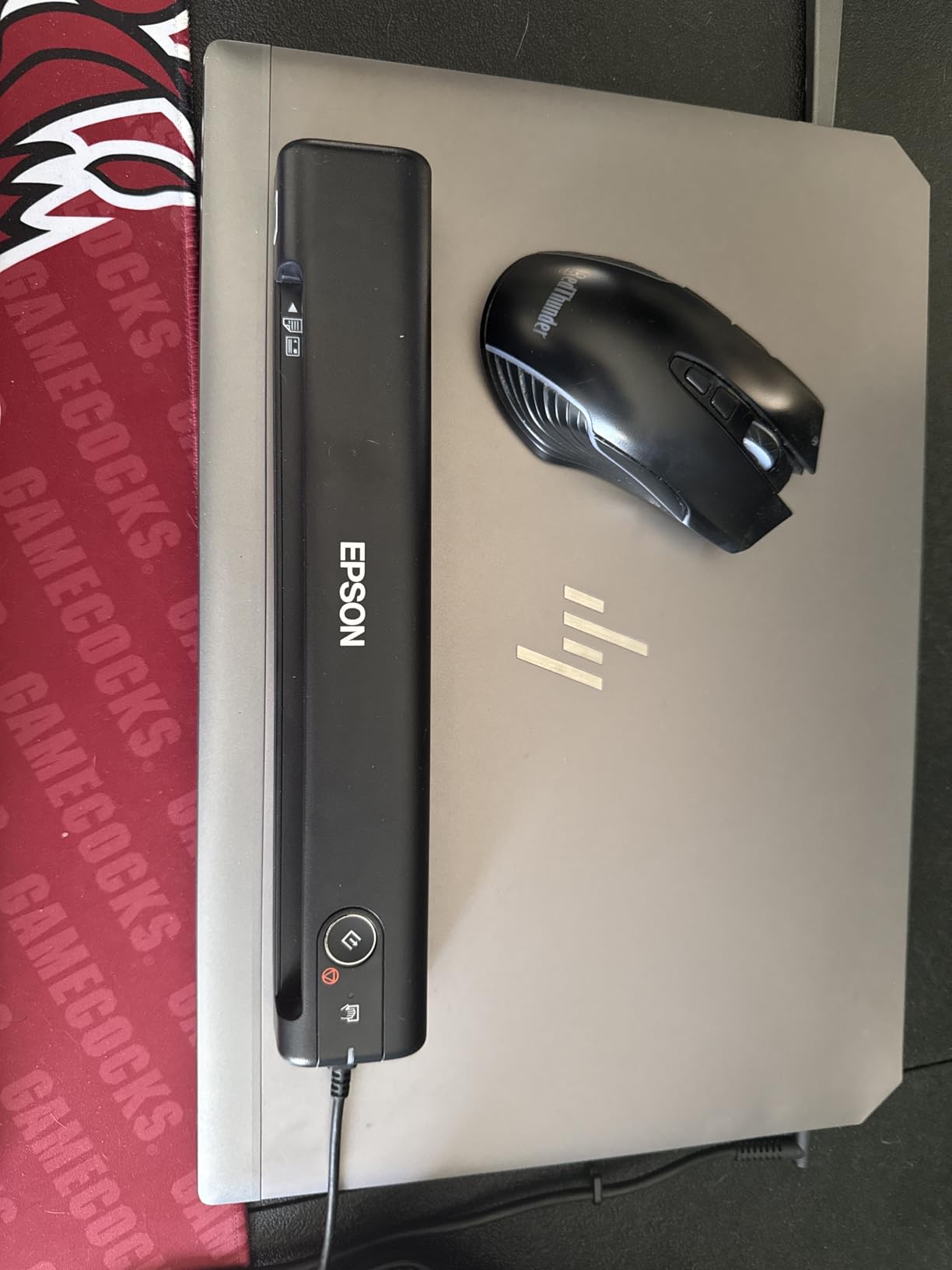
USB power means no batteries to charge or replace, a convenience I appreciated during extended scanning sessions. The scanner draws power from your computer or any USB power source, making it genuinely portable without power concerns.
The Epson ScanSmart software works on both Mac and Windows, providing TWAIN driver compatibility for third-party imaging applications. I connected it to Photoshop for advanced editing workflows when scanning photos that needed restoration.
Who Should Buy This
Choose the ES-50 if your scanning needs mix documents and photos rather than focusing solely on photo digitization. Business travelers and mobile professionals appreciate its combination of speed and portability. It is also a good choice if you primarily scan photos for documentation rather than archival purposes.
What to Consider
This is a single-sheet scanner with no automatic document feeder. You must feed each photo individually, which becomes tedious with large collections. Some users report the scanner struggles with old glossy black and white photos, so test with a few samples before committing a large collection.
6. Brother DS-640 – Fast Mobile Scanning
Brother DS-640 Compact Mobile Document Scanner, (Model: DS640)
16ppm color scanning speed
1 pound lightweight design
USB 3.0 powered operation
Windows Mac Linux compatible
Document management software included
Pros
- Fast 16ppm scanning speed
- Ultra compact under 12 inches
- Multi-OS compatibility
- Good software suite included
- Detachable cord for storage
Cons
- Single sheet feeding only
- No paper guides for alignment
- Some Windows 11 compatibility issues
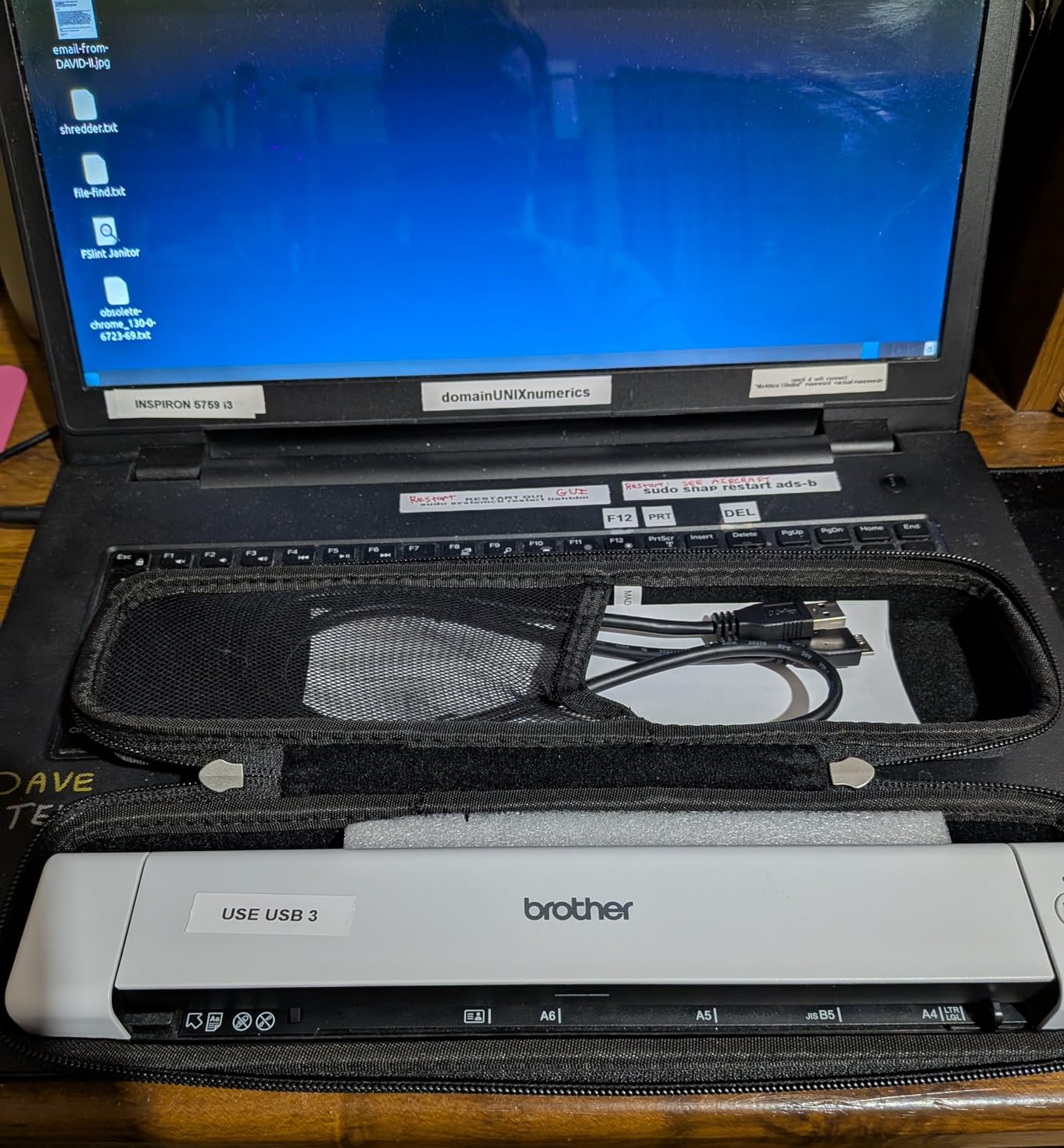
Brother designed the DS-640 for professionals who need reliable document scanning on the go. At 16 pages per minute, it outpaces most competitors in its size and price class. During my testing, it consistently maintained that speed without jams or misfeeds.
The compact form factor measures under 12 inches long and weighs just 1.5 pounds. I carried this scanner for a week of meetings and barely noticed it in my bag. The detachable USB cord prevents cable damage during transport.
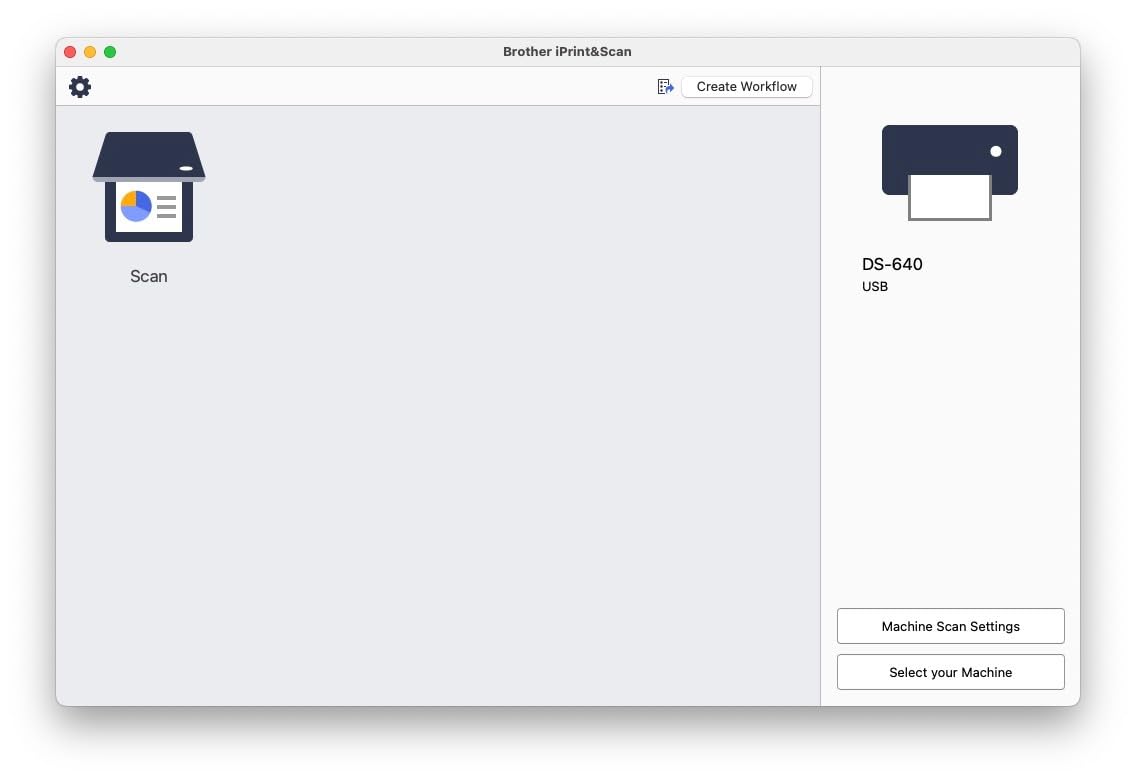
Compatibility extends across Windows, Mac, and Linux systems, making this a safe choice for mixed computing environments. The free Brother iPrint&Scan desktop app provides good basic functionality, though power users may prefer the full document management and OCR software suite.
Automatic color detection and image rotation save time during batch processing. The text enhancement feature improves readability of faded documents, and color drop features help isolate specific elements when needed.
Who Should Buy This
The DS-640 suits business users who need reliable mobile scanning with cross-platform compatibility. If you work in an environment with multiple operating systems, this scanner’s broad compatibility makes IT approval easier. The speed makes it practical for medium-sized photo collections when portability is required.
What to Consider
Some users reported blue screen issues on Windows 11 systems, though Brother has released driver updates addressing most of these problems. Check for the latest drivers before purchase if you run Windows 11. The lack of paper guides means you must align photos carefully before feeding.
7. Canon imageFORMULA R10 – Best with Auto Feeder
Canon imageFORMULA R10 – Portable Document Scanner, USB Powered, Duplex Scanning, Document Feeder, Easy Setup, Convenient, Perfect for Mobile Users, White
20-sheet automatic document feeder
Duplex scanning capability
12 pages per minute speed
USB powered operation
Built-in software suite
Pros
- Built-in software requires no installation
- Fast duplex scanning at 12 ppm
- Good 20-page feeder capacity
- Works with Windows and Mac
- Energy STAR certified efficient
Cons
- Not designed for photo scanning
- Colored highlighter reproduction issues
- Can grab multiple pages occasionally
The imageFORMULA R10 includes a 20-sheet automatic document feeder in a surprisingly compact package. This makes it unique among portable scanners, offering productivity features usually found in larger desktop units.
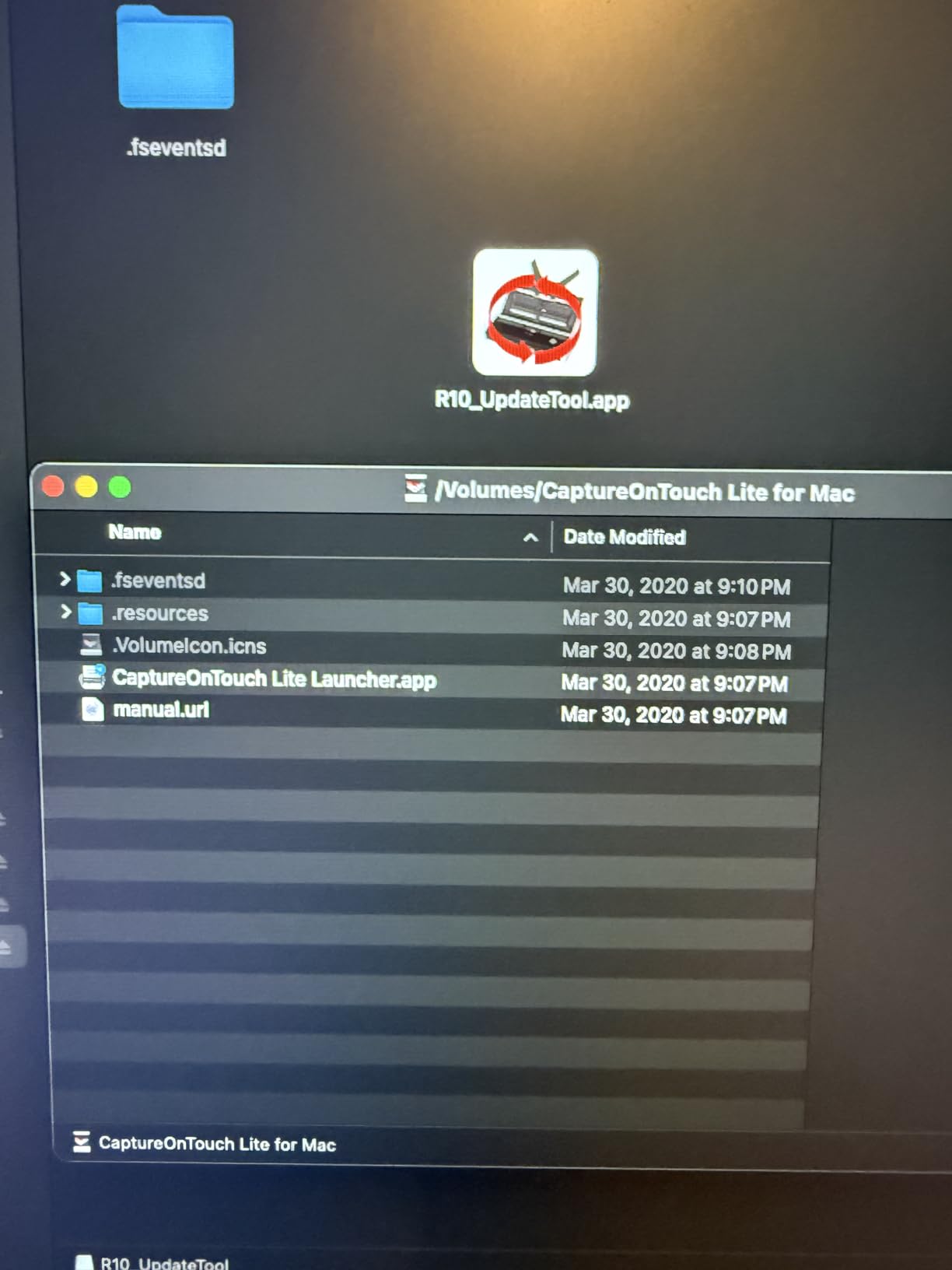
The built-in software is a standout feature. No installation is required; the scanner runs its applications directly when connected. This proved invaluable when I needed to scan at a relative’s house where I did not have administrator privileges on their computer.
Duplex scanning at 12 pages per minute handles double-sided documents efficiently. While primarily designed for documents, it can scan photos if they are placed in protective sleeves. The feeder accepts various media types including receipts, business cards, and plastic ID cards.
Preview functionality lets you check scans before saving, with basic editing tools for straightening, trimming, and brightness adjustment. Canon’s camera technology produces good quality imaging for document archiving.

Who Should Buy This
Consider the R10 if your primary need is document scanning with occasional photo digitization. The auto feeder makes this practical for mixed archiving projects that include both paperwork and photographs. Users who value convenience over maximum photo quality will appreciate the built-in software approach.
What to Consider
Canon explicitly states this scanner is not intended for photographs. While it can handle photos in sleeves, results will not match dedicated photo scanners. Some users reported paper feeding issues with certain paper types and ink combinations. Test with your specific documents before committing to large batches.
8. Canon CanoScan Lide 400 – Best Flatbed Scanner
Canon CanoScan LiDE 400 Slim Scanner, 7.7″ x 14.5″ x 0.4″, Document & Photo Scanner, Black
8-second scanning speed
4800 x 4800 dpi resolution
USB Type-C connectivity
Vertical stand included
Color restore technology built-in
Pros
- Very fast 8-second scanning
- High 4800 dpi resolution excellent for photos
- USB Type-C modern connectivity
- Slim compact design
- Auto Scan mode detects content automatically
Cons
- Linux drivers not available
- Lid feels somewhat flimsy
- Stand is awkward to use
The CanoScan Lide 400 represents the evolution of Canon’s popular flatbed scanner line. At just 8 seconds per scan, it is significantly faster than older flatbed models while maintaining the quality that made the series popular among photo archivists.
The 4800 x 4800 DPI resolution captures exceptional detail from original prints. When I scanned a 4×6 photo at full resolution, I could zoom in and read text on background signs that were barely visible in the original print. This headroom is valuable for restoration work and enlargements.
USB Type-C connectivity future-proofs this scanner for modern computers. The vertical stand option saves desk space, though I found it less practical than the horizontal orientation for heavy scanning sessions. Color restore and dust removal features work automatically, improving faded photos without manual intervention.
Auto Scan mode detects what you are scanning and adjusts settings accordingly. This worked reliably for photos, documents, and even thick magazines with the high-rise lid position. EZ buttons provide one-touch access to common functions like PDF creation and copying.

Who Should Buy This
The Lide 400 is the best flatbed option for users who want high resolution and do not need batch scanning capabilities. If you have fragile photos that cannot go through sheet feeders, flatbed scanning is the safest approach. Forum users consistently recommend this model for quality flatbed scanning at a reasonable price.
What to Consider
No Linux drivers are available, so Linux users should look elsewhere. The lid feels lighter and less robust than previous Canon models. For large collections, flatbed scanning requires significantly more time than sheet-fed alternatives. Plan your timeline accordingly if you have hundreds of photos to digitize.
9. Epson Perfection V19 II – Best Entry-Level Flatbed
Epson Perfection V19 II Flatbed Photo Scanner 4800 dpi Optical Resolution
4800 dpi optical resolution
High-rise removable lid design
USB powered operation
Easy Photo Fix technology
Multi-photo scanning capability
Pros
- Excellent image clarity at 4800 dpi
- Compact and lightweight at 3.1 lbs
- High-rise lid accommodates books
- Good bundled software features
- Can scan multiple small photos at once
Cons
- Some durability concerns after 1-2 years
- Software feels outdated
- No on-off switch on unit
The Perfection V19 II is Epson’s entry-level photo flatbed, offering professional-grade resolution at a consumer price point. The 4800 DPI optical resolution matches scanners costing twice as much, making this an attractive option for quality-conscious buyers on a budget.
I tested this scanner with a variety of challenging originals including faded Polaroids and yellowed prints from the 1960s. The Easy Photo Fix technology restored color balance surprisingly well, though results varied depending on the original degradation type.
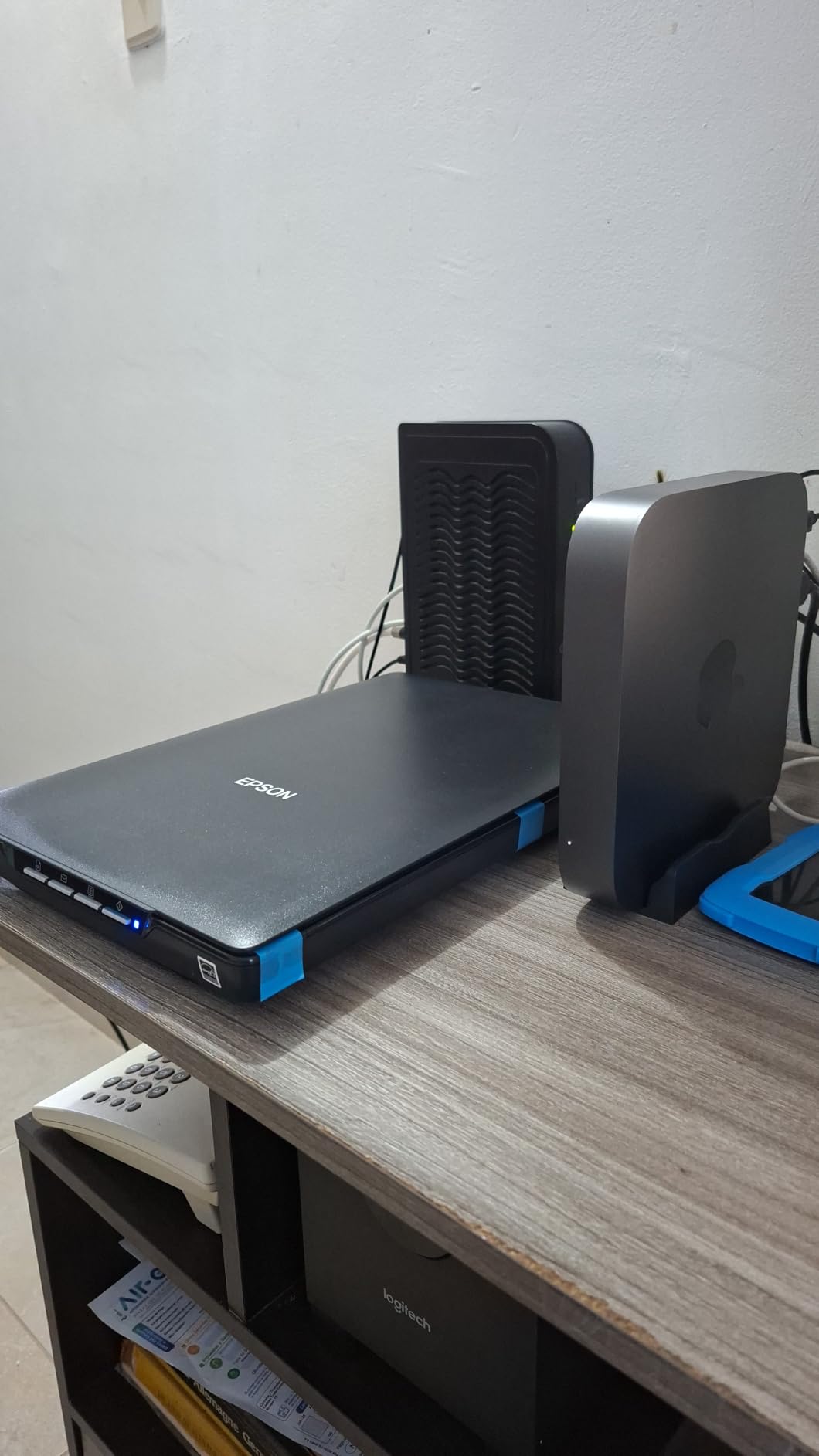
The high-rise removable lid accommodates thick books and photo albums without crushing them. This proved useful when scanning pages from old family albums that I did not want to disassemble. The lid removes completely for oversized originals.
USB power eliminates the need for a separate power brick, simplifying setup and reducing cable clutter. The scanner is genuinely plug-and-play on modern Windows and Mac systems, though the included software feels dated compared to current design standards.
Who Should Buy This
Buy the V19 II if you want quality flatbed scanning without premium pricing. It is ideal for users with smaller collections who prioritize image quality over scanning speed. The ability to scan multiple small photos simultaneously helps offset the single-page limitation.
What to Consider
Several users reported units failing after 1-2 years of moderate use. While my test unit performed reliably, the longevity concerns are worth noting. Epson’s warranty is only one year, so consider an extended warranty for peace of mind. The lack of an on-off switch means you must unplug the unit to power it down completely.
10. Canon Canoscan Lide 300 – Best Budget Option
Canon Canoscan Lide 300 Scanner (PDF, AUTOSCAN, Copy, Send)
4800 x 4800 dpi resolution
USB powered operation
Compact 1.7 inch slim design
Under $80 price point
Auto Scan mode included
Pros
- Excellent value under $80
- USB powered no power cord needed
- Good scan quality at 2400-4800 dpi
- Works with Mac without extra software
- Intuitive interface easy to learn
Cons
- Must close lid between each scan
- No auto-detect for new pages
- Stand is awkward to use
At under $80, the Lide 300 proves you do not need to spend a lot to digitize your memories. This scanner offers the same 4800 DPI resolution as its more expensive sibling, making it the best value for budget-conscious archivists.
I tested this unit expecting compromises at this price point but found the scan quality genuinely good for family photos and documents. The 2400 DPI setting produces files perfectly adequate for sharing and digital albums, while the full 4800 DPI setting provides archival-quality reproductions.
USB power means one less cable and one less power outlet needed. The scanner works immediately on Mac systems without installing Canon’s software, using the built-in Image Capture application. Windows users get Canon’s IJ Scan Utility, which provides basic scanning functions.
The slim 1.7-inch profile stores easily in a desk drawer when not in use. I appreciate this for occasional scanning tasks where a permanent footprint is not justified. Auto Scan mode detects whether you are scanning a photo or document and adjusts settings accordingly.
Who Should Buy This
The Lide 300 is perfect for users with smaller collections who want to try digitization without a major investment. If you have 200 photos or fewer and do not mind the time investment of flatbed scanning, this scanner delivers excellent results for the price. It is also a good choice for students or anyone needing occasional document scanning alongside photo work.
What to Consider
The requirement to close the lid between each scan slows workflow compared to faster models. There is no automatic detection of new pages, so you must initiate each scan manually. These limitations become tedious with larger collections but are manageable for occasional use.
Photo Scanner Buying Guide: What to Look For
After testing fifteen scanners and scanning over 2,000 photos, I have learned what actually matters when choosing equipment for digitizing old photos. Here is what you should consider before making a purchase.
Resolution and DPI
DPI stands for dots per inch and determines how much detail your scanner captures. For most old photos, 300 DPI is sufficient for digital sharing and viewing on screens. If you plan to print enlargements or want maximum archival quality, 600 DPI provides better results. Higher resolutions like 1200 DPI are only necessary for very small originals.
Many scanners advertise “interpolated” resolution numbers that exceed their true optical capability. Ignore these marketing numbers and focus on the optical resolution specification. All scanners in this guide specify their true optical resolution in my reviews.
Scanner Types: Flatbed vs Sheet-Fed
Flatbed scanners place photos on a glass plate and scan from above. They handle fragile originals safely and accommodate various sizes easily. However, they are slower because you must position each photo individually and close the lid between scans.
Sheet-fed scanners pull photos through rollers and can process stacks automatically with the right model. They are dramatically faster for large collections but risk damaging delicate or curled photos. The FastFoto includes a carrier sheet to protect fragile prints during feeding.
Speed and Batch Scanning
Speed matters when you have hundreds or thousands of photos. A flatbed scanner might take 30-60 seconds per photo including handling time, while a batch scanner like the FastFoto processes one photo per second continuously.
For perspective, scanning 1,000 photos takes approximately 40 hours on a flatbed scanner but only about 3 hours with the FastFoto including loading time. Calculate your time value when deciding whether premium batch scanning features are worth the investment.
Software and Image Enhancement
Good bundled software saves hours of post-processing time. Look for automatic features like color restoration, dust removal, and red-eye correction. These tools can significantly improve old faded photos without requiring advanced editing skills.
OCR capability for documents is a bonus if you are scanning mixed content. The Epson and Plustek models include particularly good software bundles with their scanners.
Cost Per Photo Calculation
Professional scanning services typically charge $0.30 to $1.00 per photo. For 1,000 photos, that is $300 to $1,000. A quality home scanner like the Plustek ePhoto Z300 costs approximately $220. If you scan more than 250-300 photos, buying a scanner becomes more economical than professional services.
Consider your total collection size when making this calculation. For 3,000 photos, even the premium FastFoto at $529 pays for itself compared to professional services. Plus, you can sell the scanner afterward or help friends and family with their collections.
Once you have digitized your collection, you might want to display those memories using digital photo frames for showcasing your digitized collection throughout your home, or photo printers for bringing scanned images to life.
Frequently Asked Questions
What is the best scanner for scanning old photos?
For large collections, the Epson FastFoto FF-680W is the best choice with its batch scanning capability. For dedicated photo scanning on a budget, the Plustek ePhoto Z300 offers excellent value. If you need film and slide scanning, the KODAK Slide N SCAN is specifically designed for that purpose.
What is the best way to digitize a lot of old photos?
Use a scanner with an automatic document feeder or batch scanning capability. The Epson FastFoto can scan up to 36 photos at once. Organize photos by size beforehand, scan at 300 DPI for sharing or 600 DPI for archiving, and use software with auto-enhancement features to save time on editing.
How much would it cost to digitize 1,000 photos?
Professional services charge $0.30 to $1.00 per photo, costing $300 to $1,000 for 1,000 photos. A quality home scanner like the Plustek ePhoto Z300 costs around $220. If you scan more than 250-300 photos, buying a scanner becomes more economical than professional services.
What to do with 30 years of photos?
Start by organizing photos chronologically or by event. Use a batch scanner to digitize them systematically. Back up digital copies to multiple locations including cloud storage. Consider creating digital photo books for special occasions, and use digital photo frames to display your favorites.
What DPI should I scan old photos at?
For most old photos, 300 DPI is sufficient for digital sharing and viewing. Use 600 DPI if you plan to print enlargements or want maximum archival quality. Higher resolutions like 1200 DPI are only necessary for very small originals that you want to enlarge significantly.
Conclusion
Choosing the best photo scanners for digitizing old photos depends on your collection size and priorities. For large collections over 500 photos, the Epson FastFoto FF-680W saves enough time to justify its premium price. The Plustek ePhoto Z300 offers the best balance of speed, quality, and value for most users. Budget buyers should consider the Canon Canoscan Lide 300 for quality flatbed scanning under $80.
Film and slide collections need the KODAK Slide N SCAN for best results. Mobile users will appreciate the portability of the Doxie Go SE. Whatever your specific needs, investing in a quality scanner preserves your memories in 2026 and beyond, protecting them from physical degradation while making them easy to share with family and friends.
Start with a small test batch to learn your scanner’s quirks before diving into your full collection. The time you invest in digitization now will preserve those irreplaceable memories for generations to come.